

Make a ZEDSMS account with your email and a password. Then sign in to buy and manage your numbers.
Before you start
- An email address you can open. You need it to confirm your account.
- A password with at least 8 characters, one uppercase letter, one lowercase letter and one number.
- You do not need a name or a username.
- You must be 18 or older (see our Terms of Service).
Steps
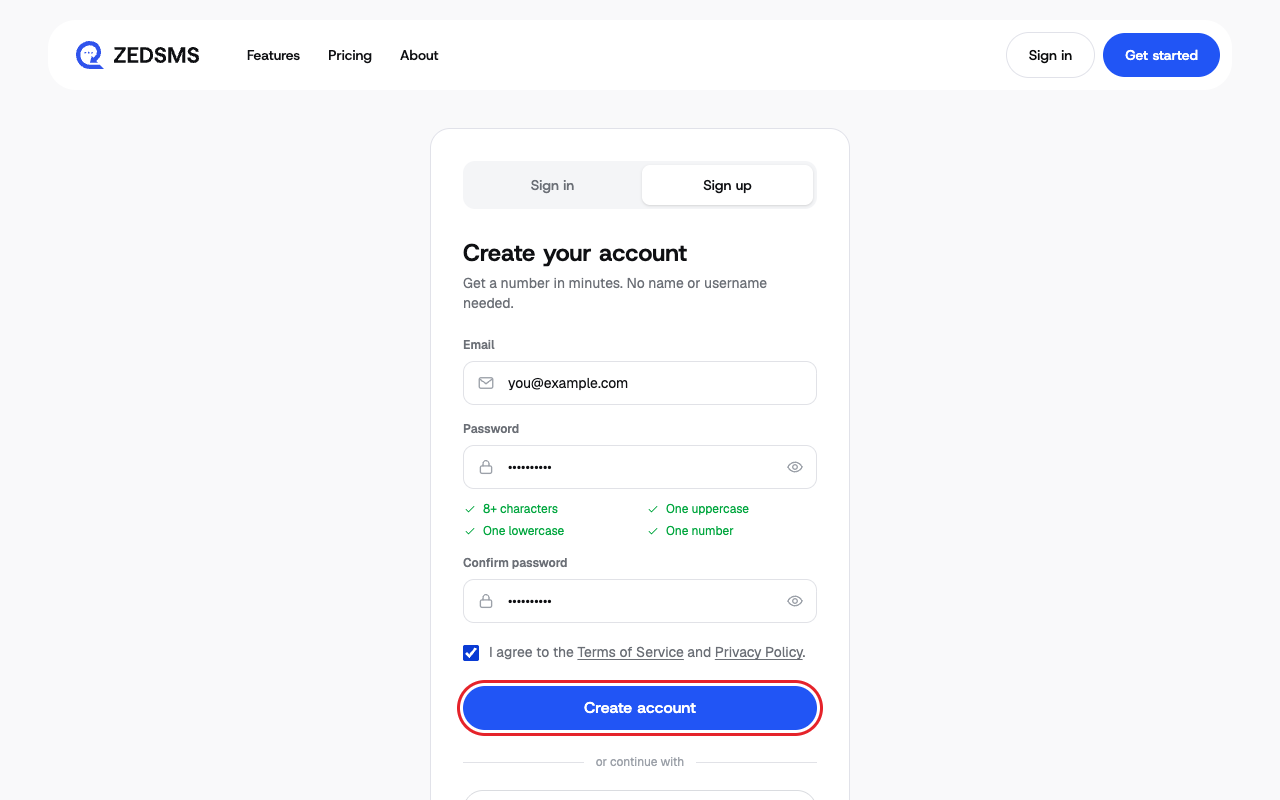
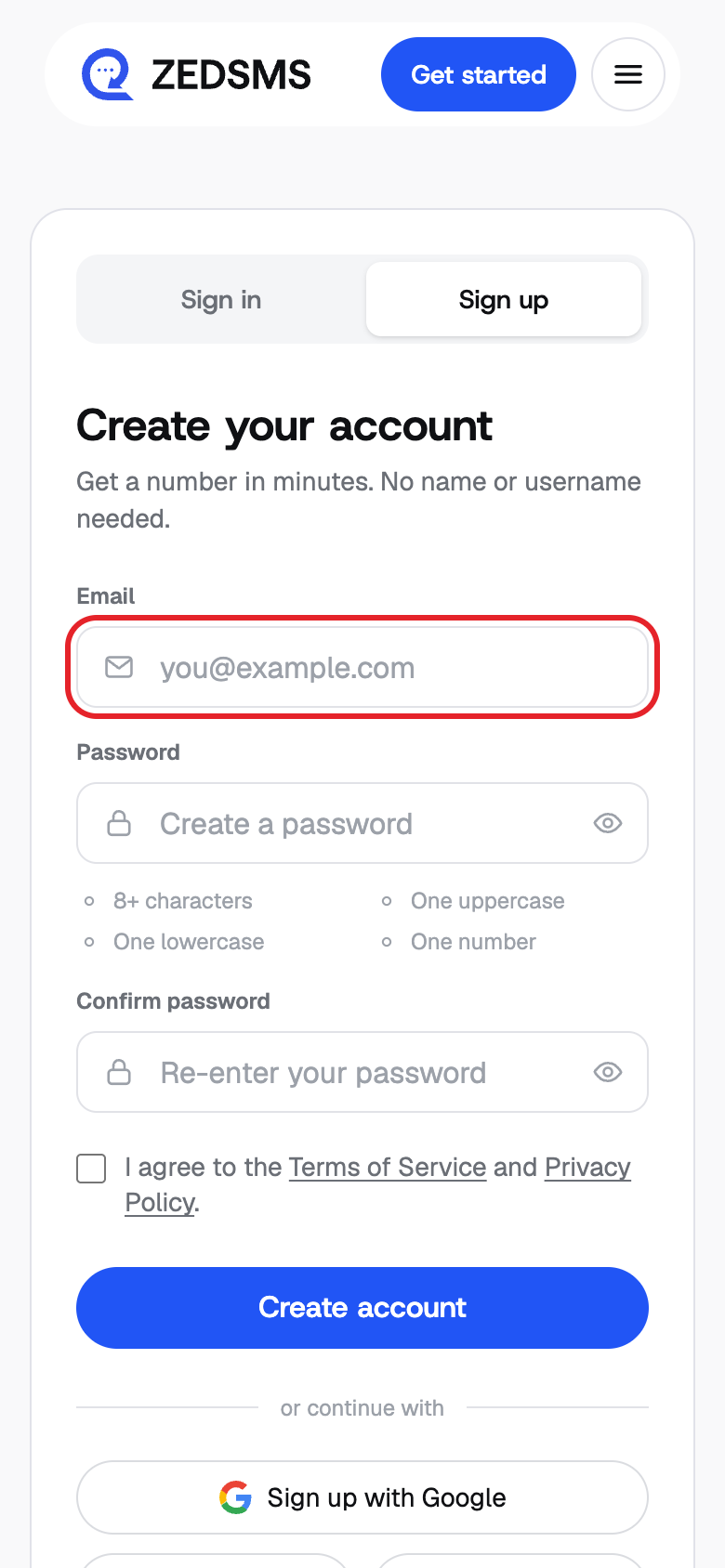
- Open the sign-up page and make sure the Sign up tab is selected.
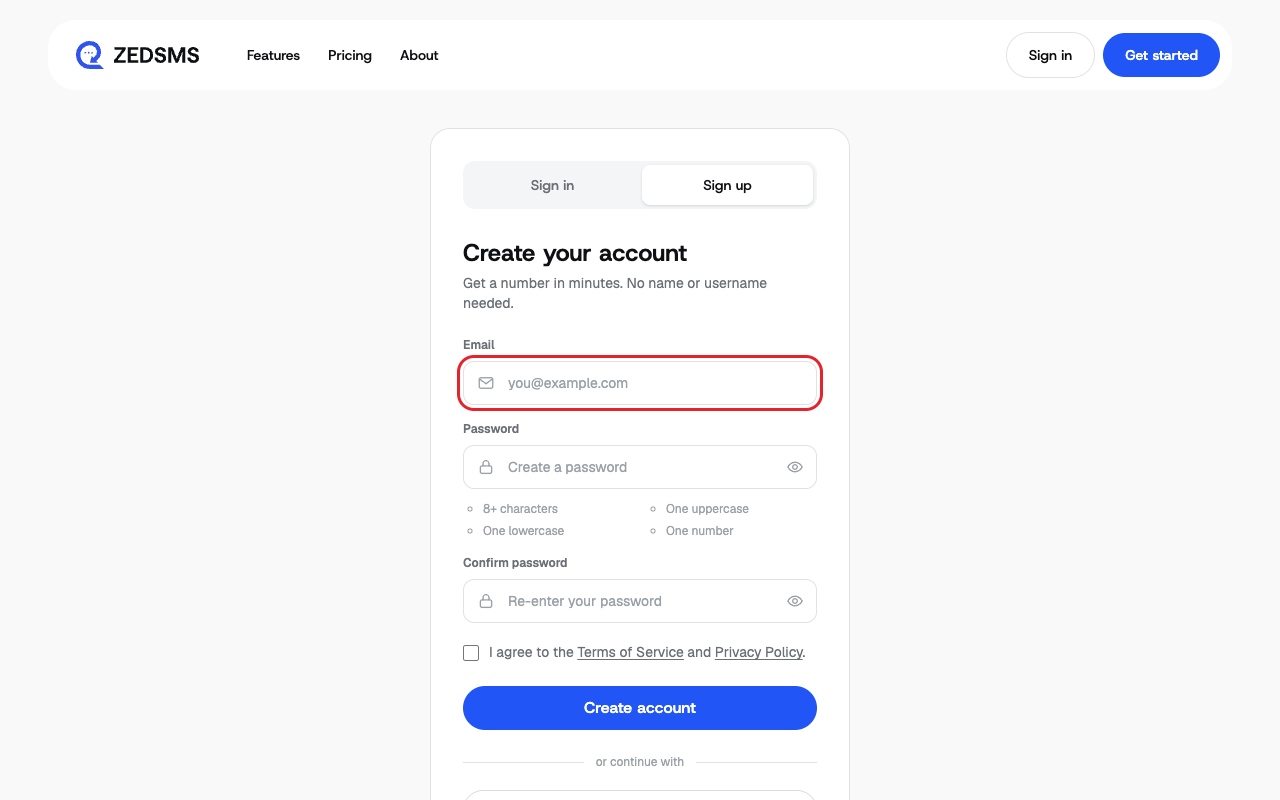
- Type your email in Email.
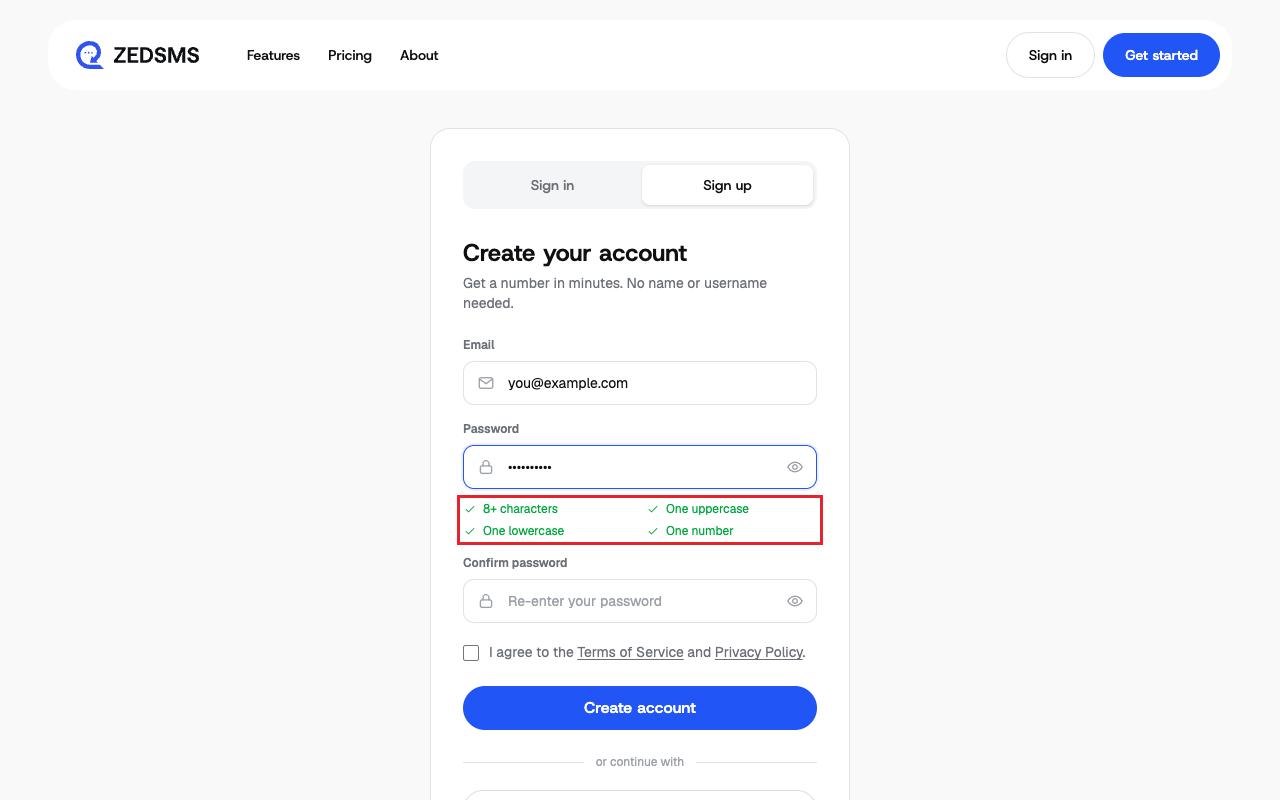
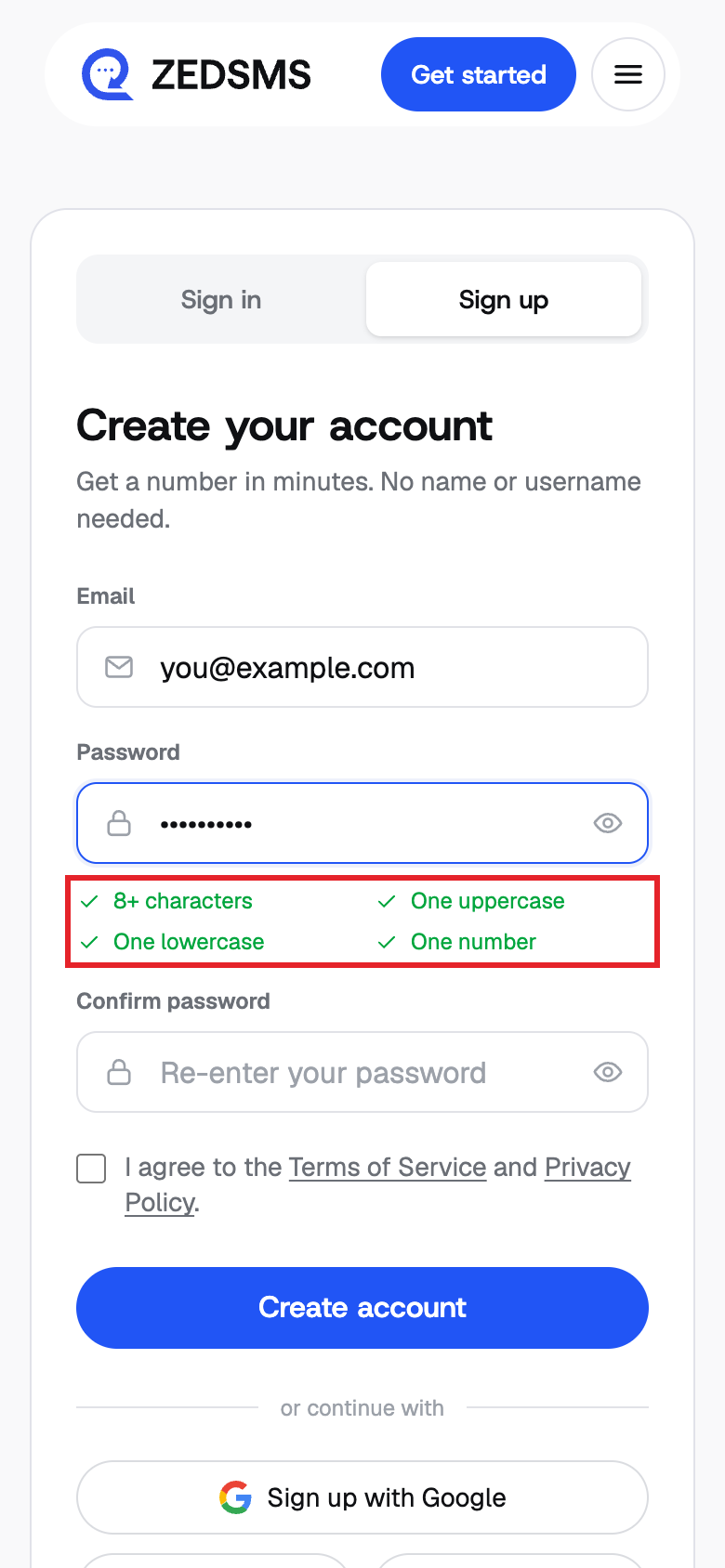
- Type a password in Password. The list under the box shows 8+ characters, One uppercase, One lowercase and One number. Each one turns green when you meet it.
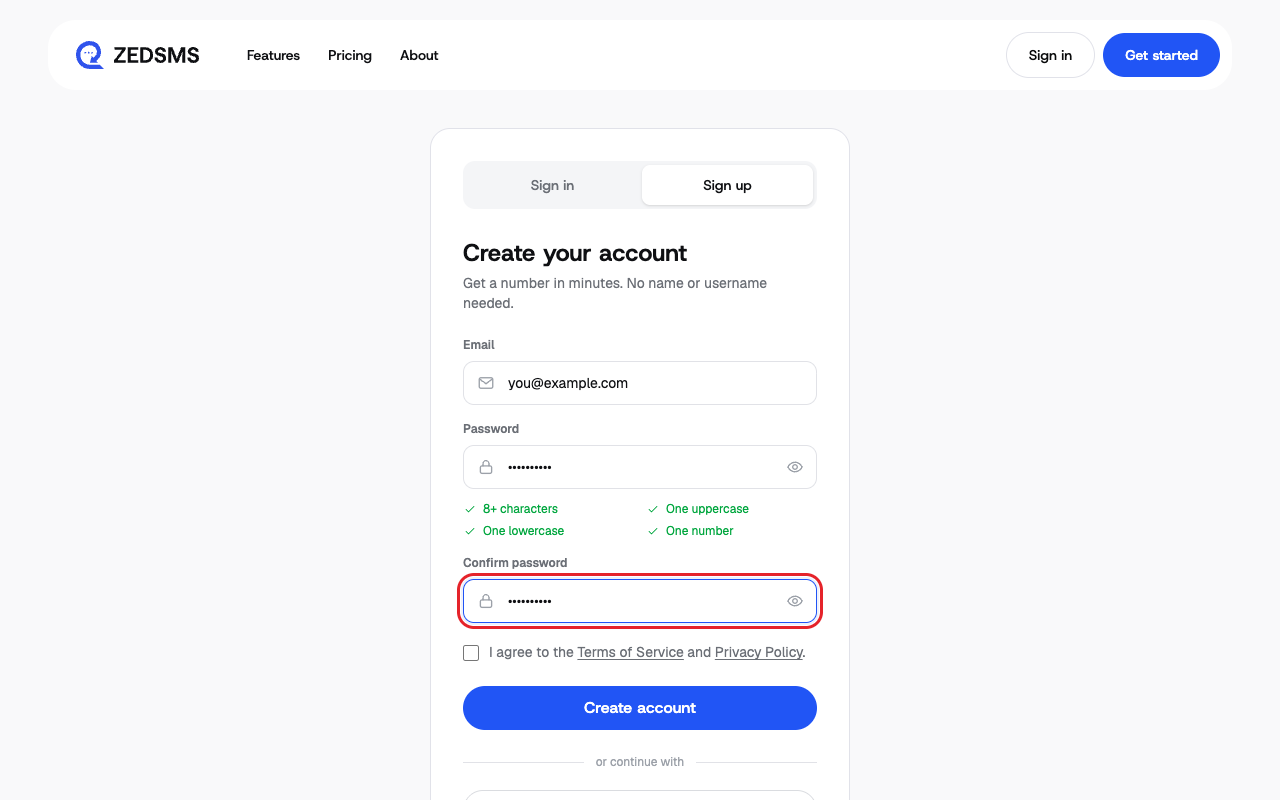
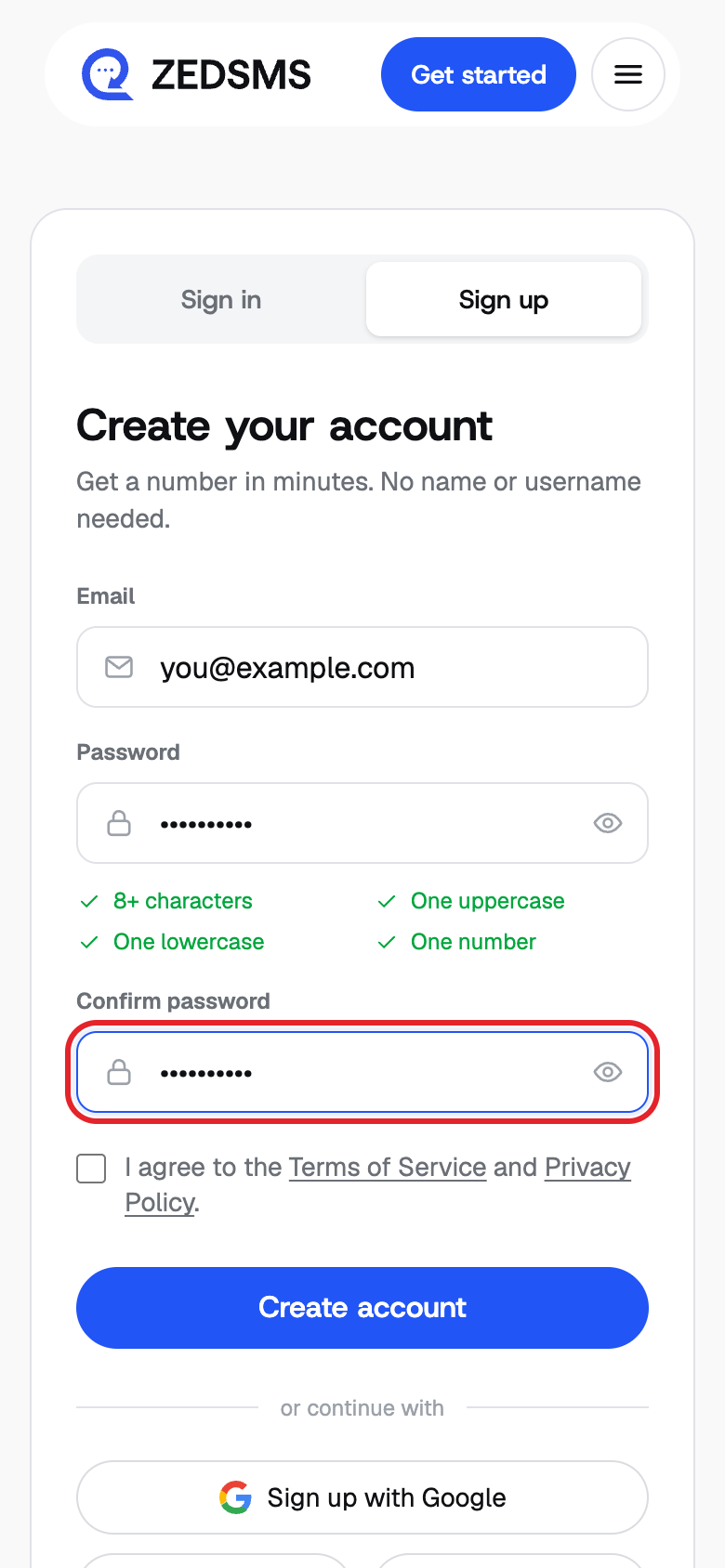
- Type the same password again in Confirm password.
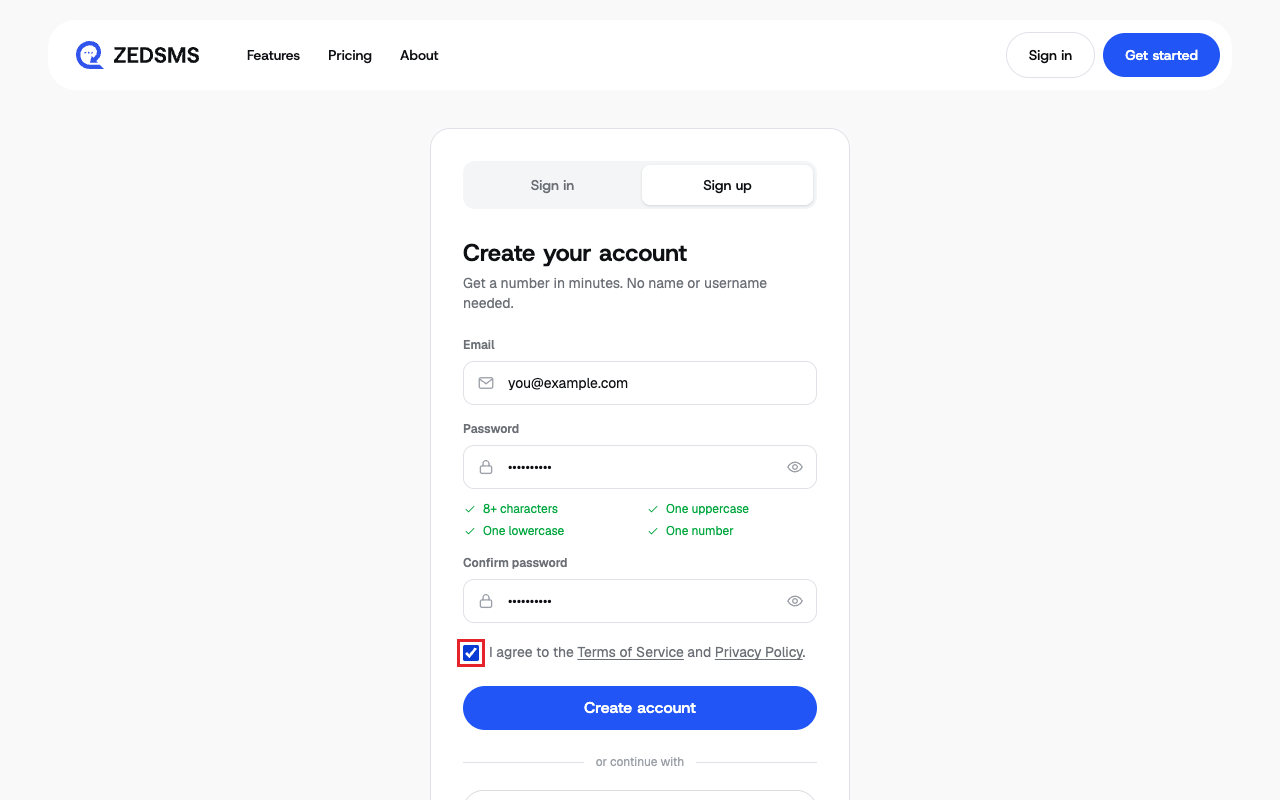
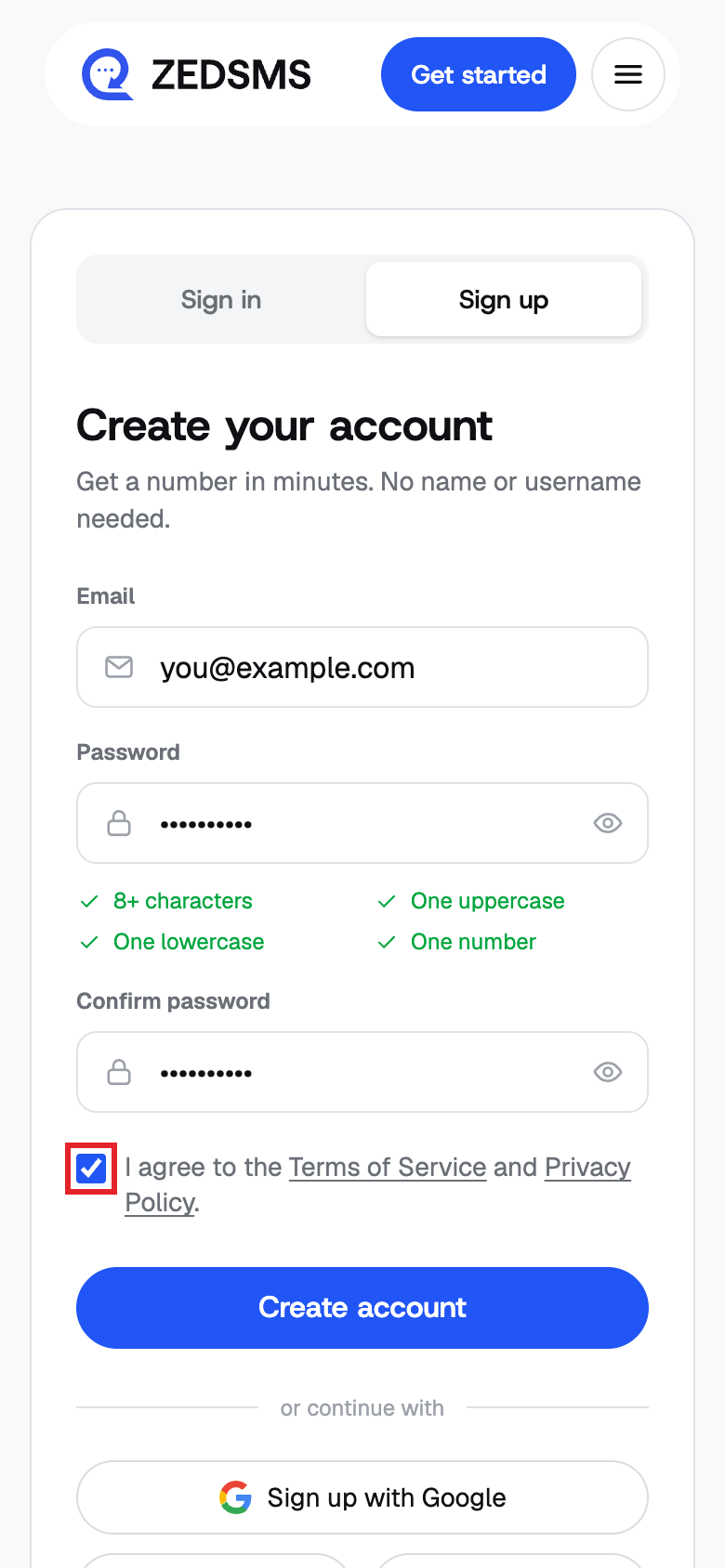
- Tick I agree to the Terms of Service and Privacy Policy.
- Click Create account.
- Open your email and click the link we sent you. The page called Verify Your Email stays open and moves on by itself when you are done. If nothing arrives, check your spam folder, then click Resend Email.
- Next time, click Sign in (at the bottom of the sign-up box, or the Sign in tab).
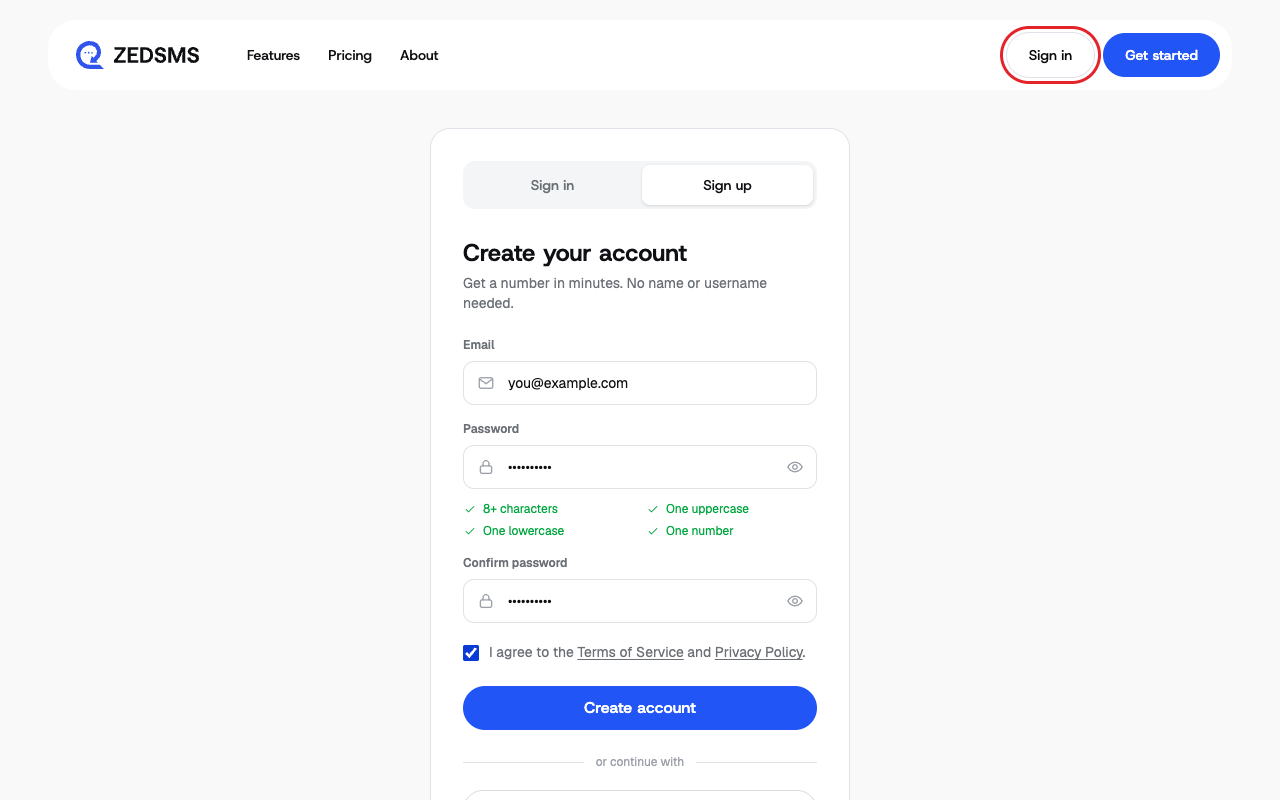
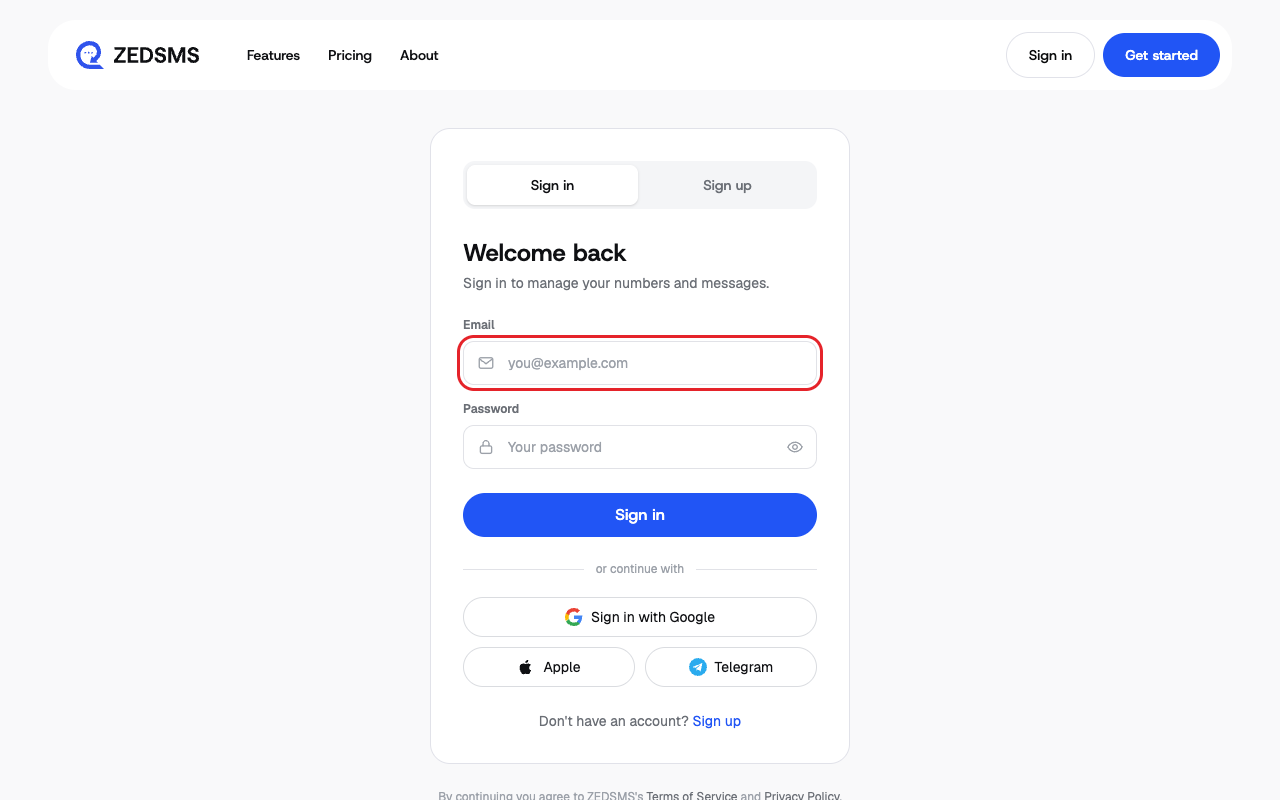
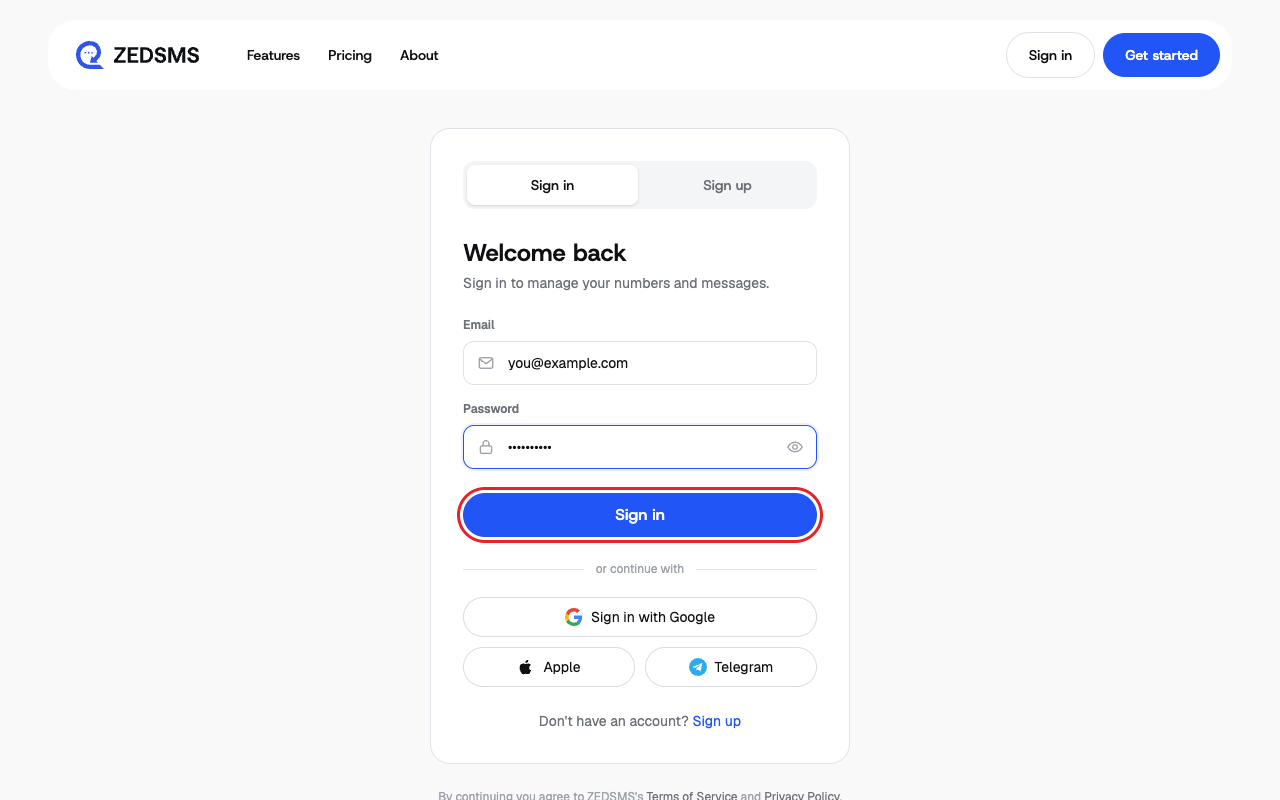
- Type your email in Email.
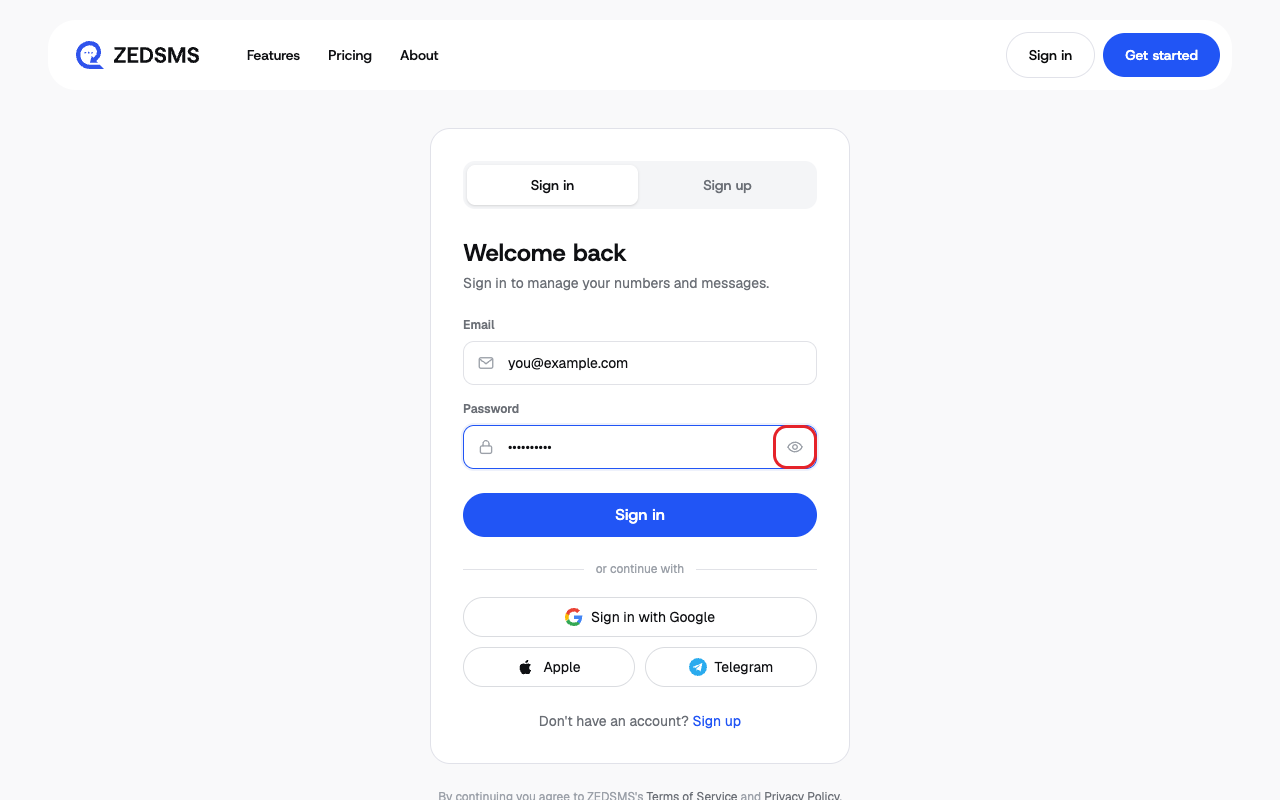
- Type your password in Password. Click the eye icon to show or hide what you typed.
- Click Sign in. You can also click Sign in with Google.
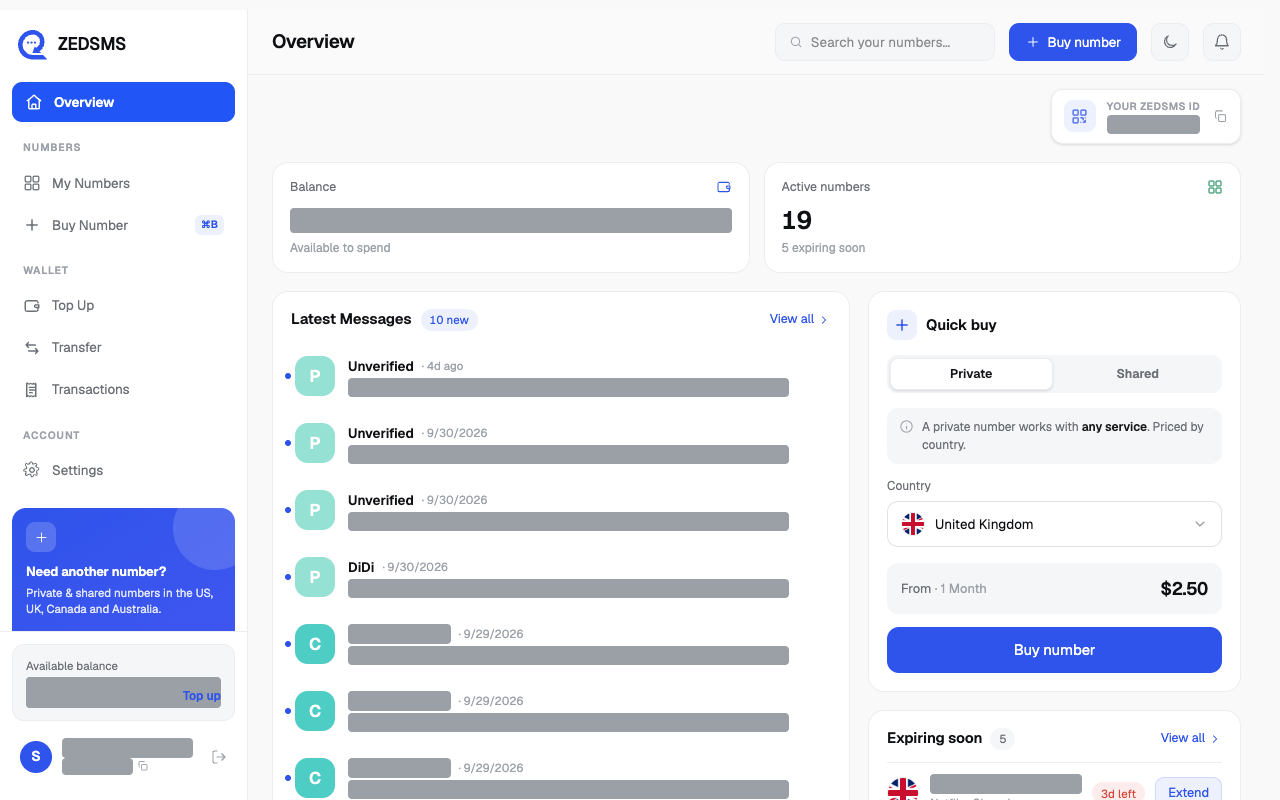
- You arrive on your Overview page.
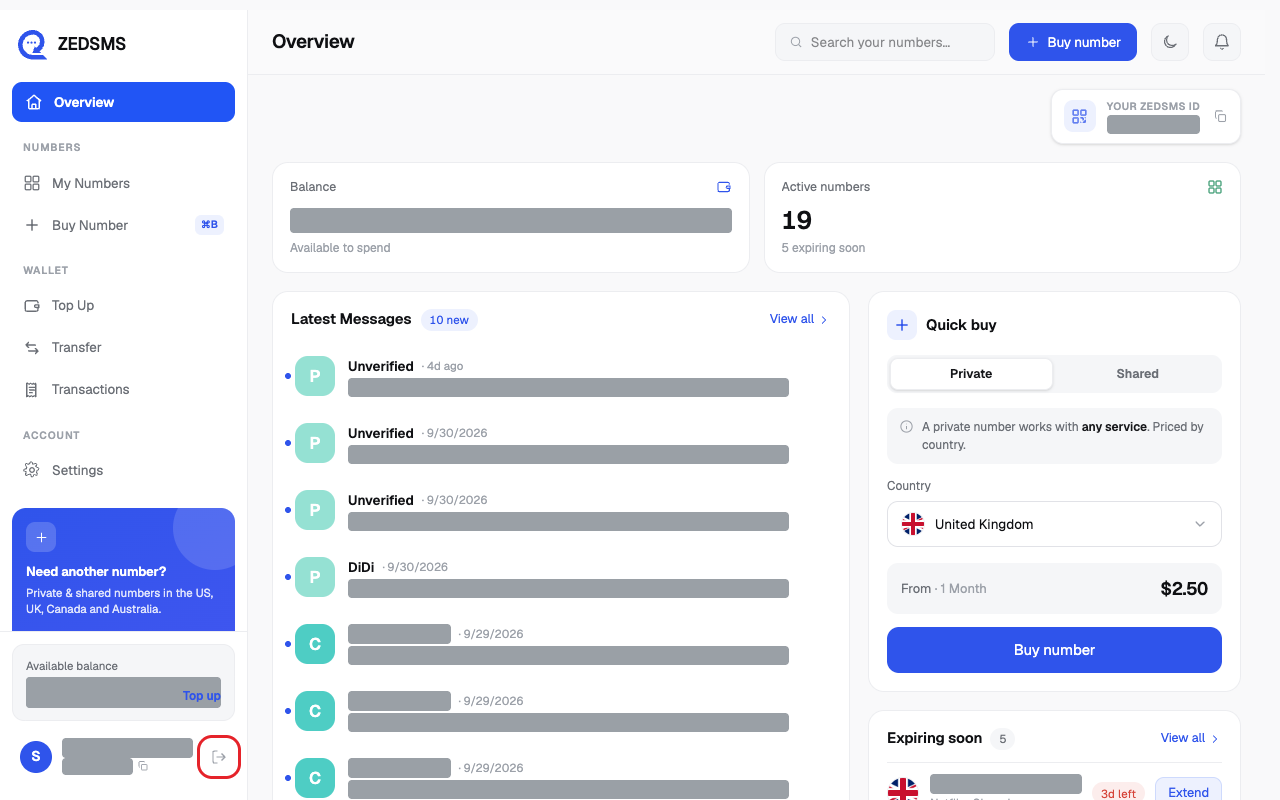
- To leave, click the log-out icon at the bottom of the left menu. On a phone, open the menu first.
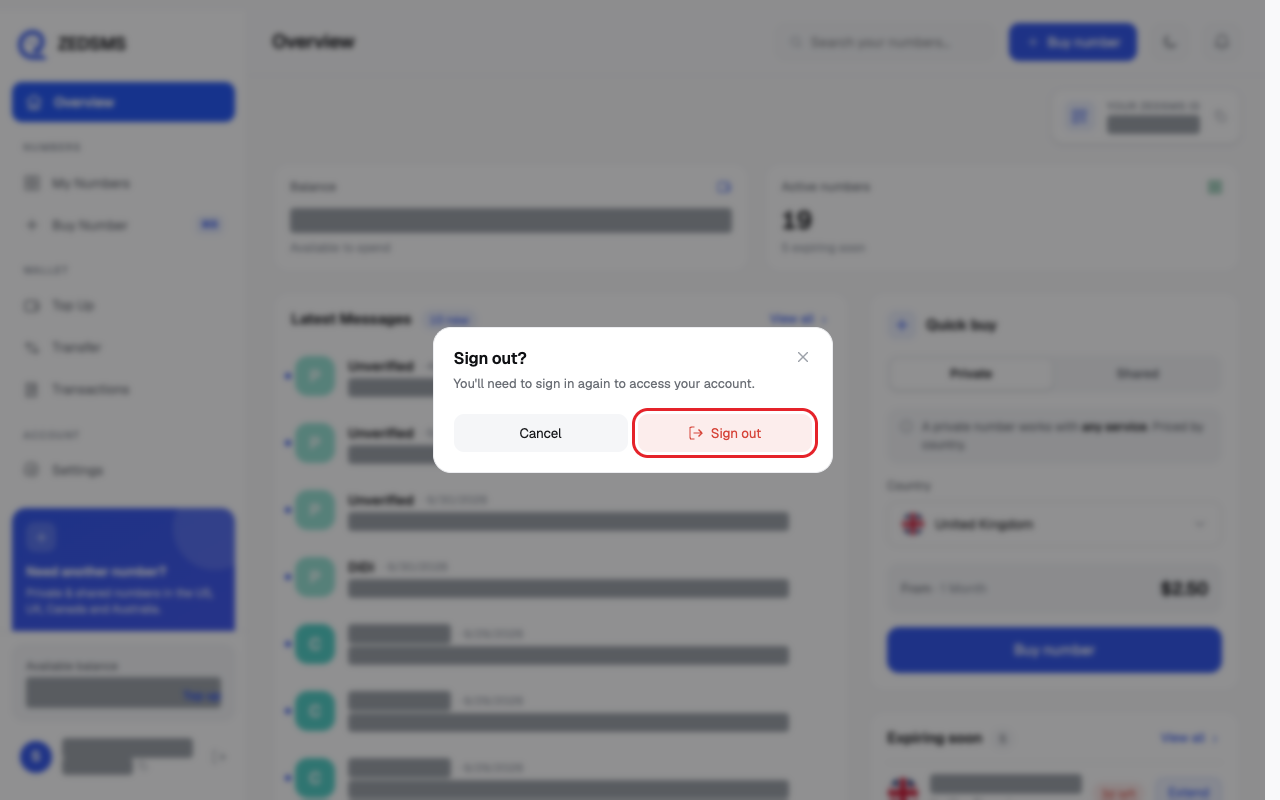
- Click Sign out to confirm.
Two-step sign-in. If you turned on two-factor authentication, you see Two-Factor Authentication after your password. Type the 6-digit code from your authenticator app and click Verify. If you lost your phone, click Lost your phone? Use a recovery code and type one of your saved recovery codes.
Using a phone? See the same steps on a small screen
Step 1
Step 2
Step 3
Step 4
Step 5
Step 6
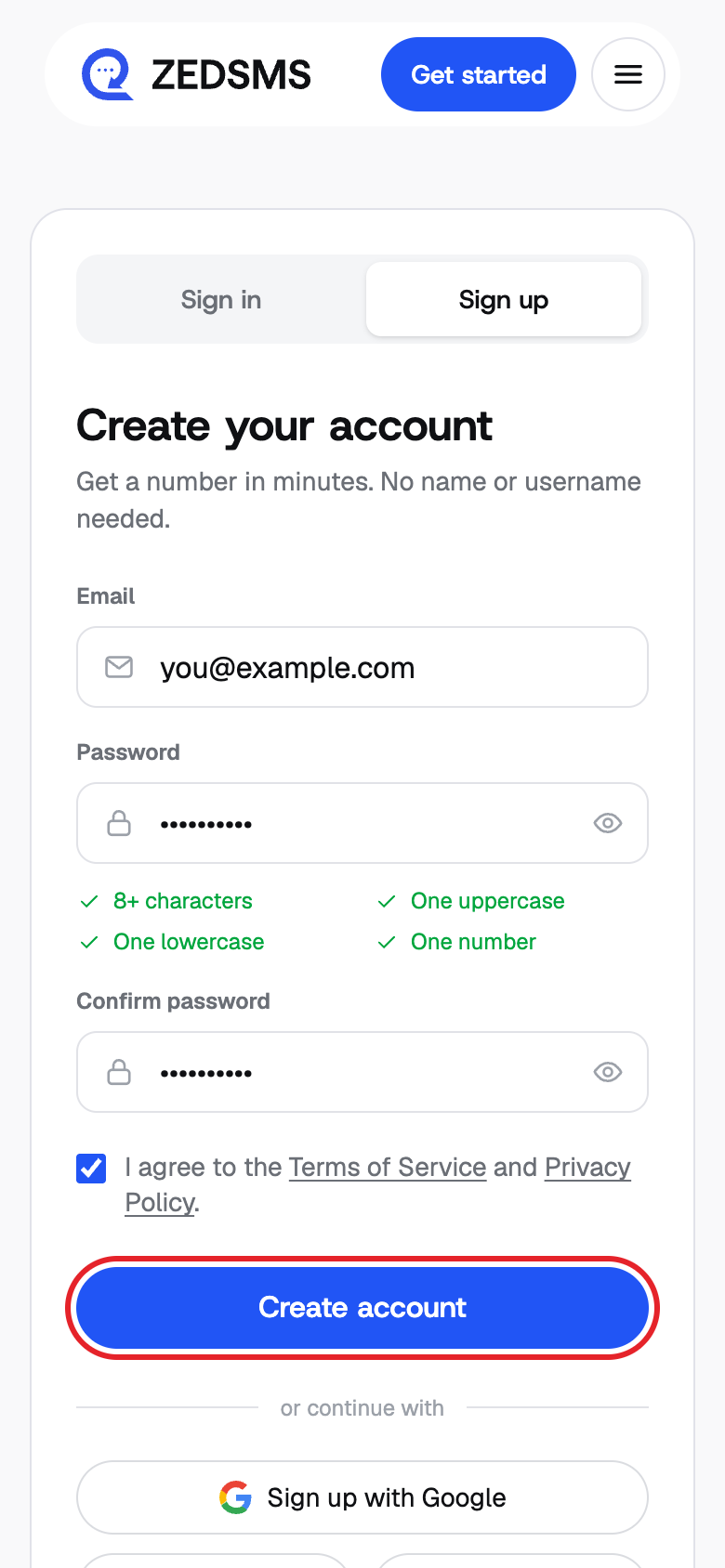
Step 8
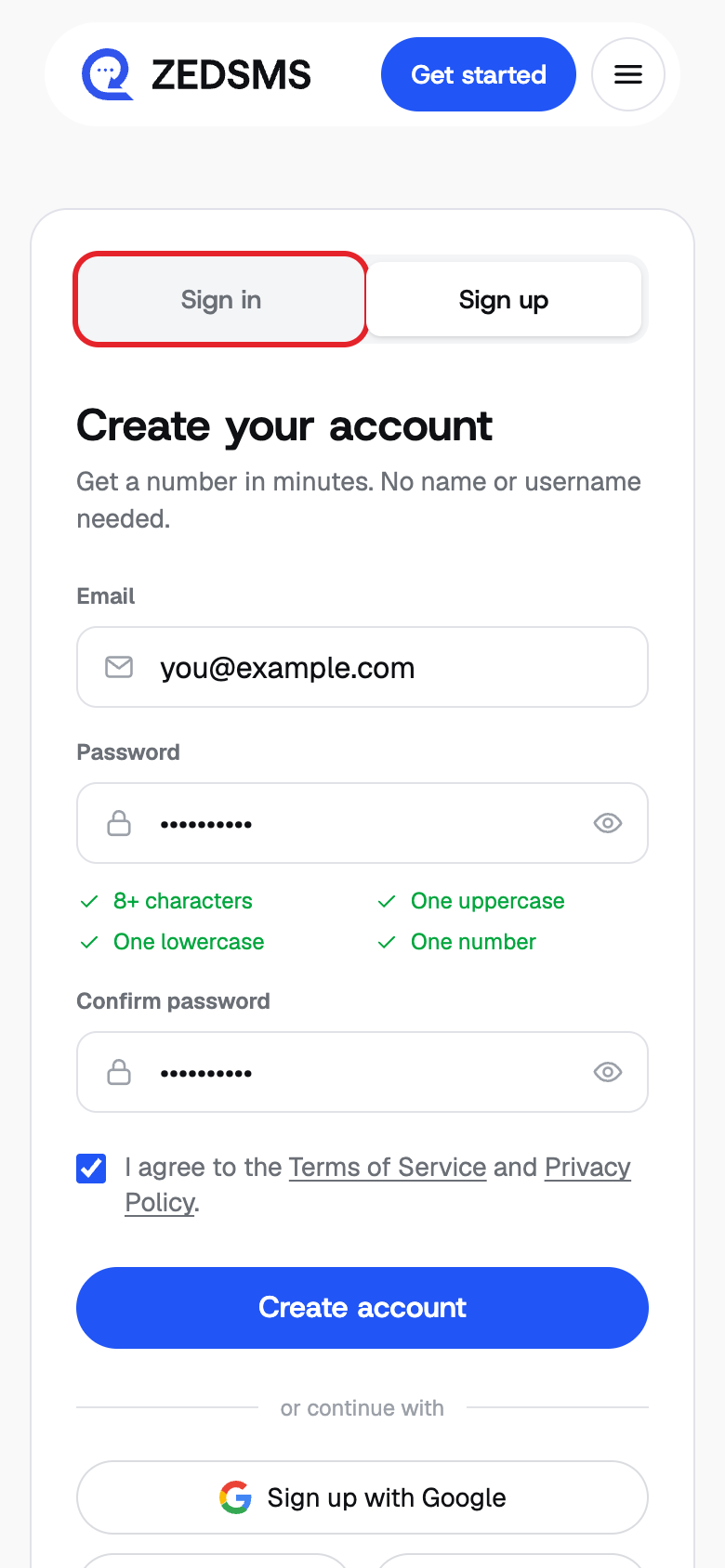
Step 9
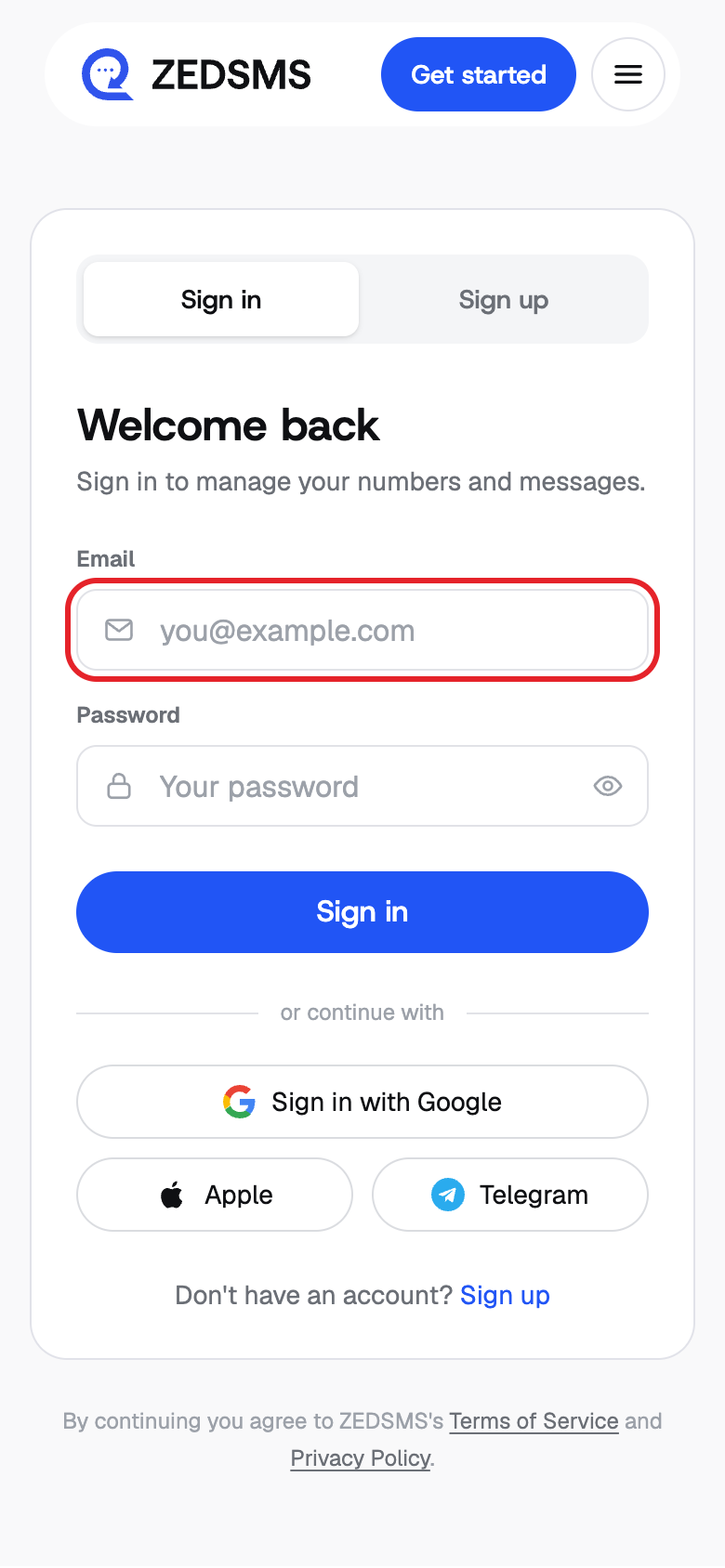
Step 10
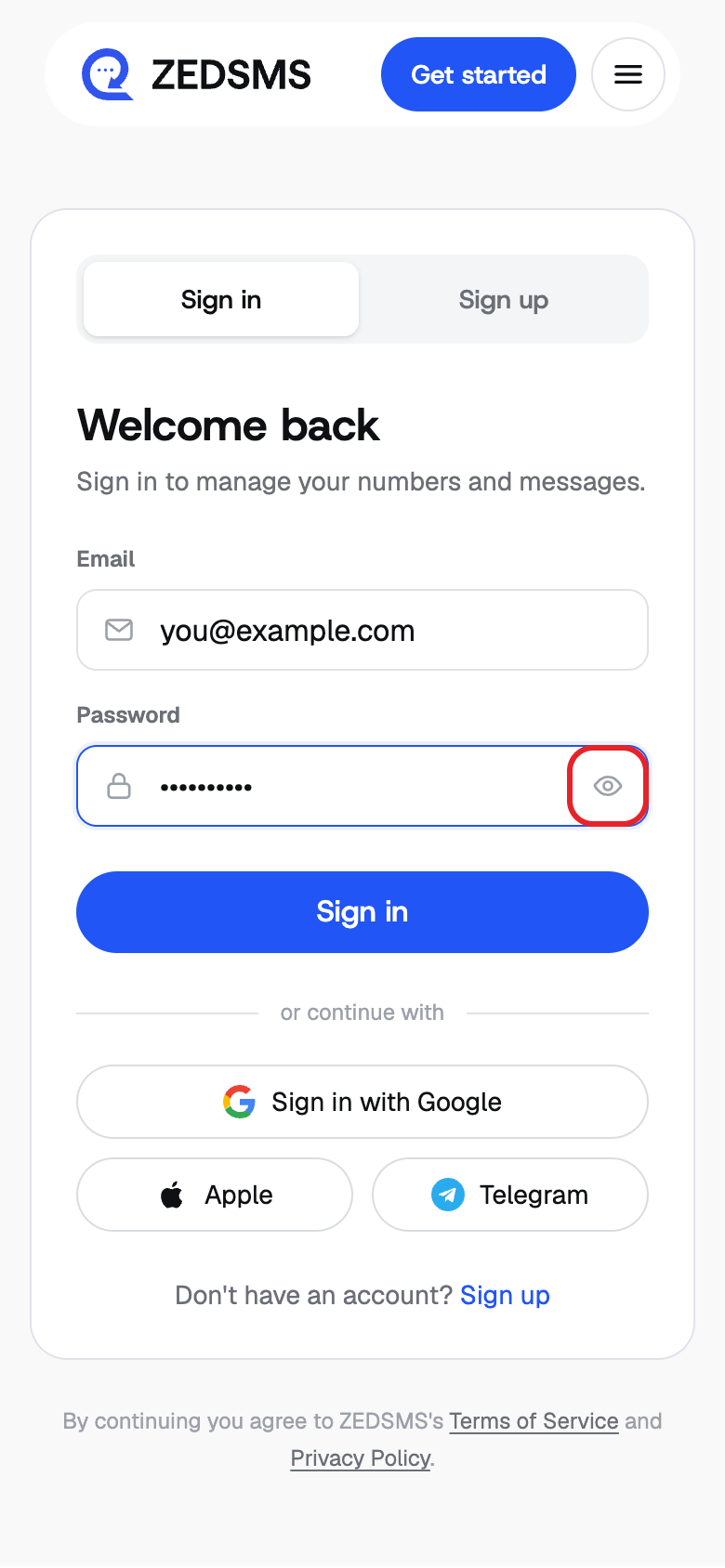
Step 11
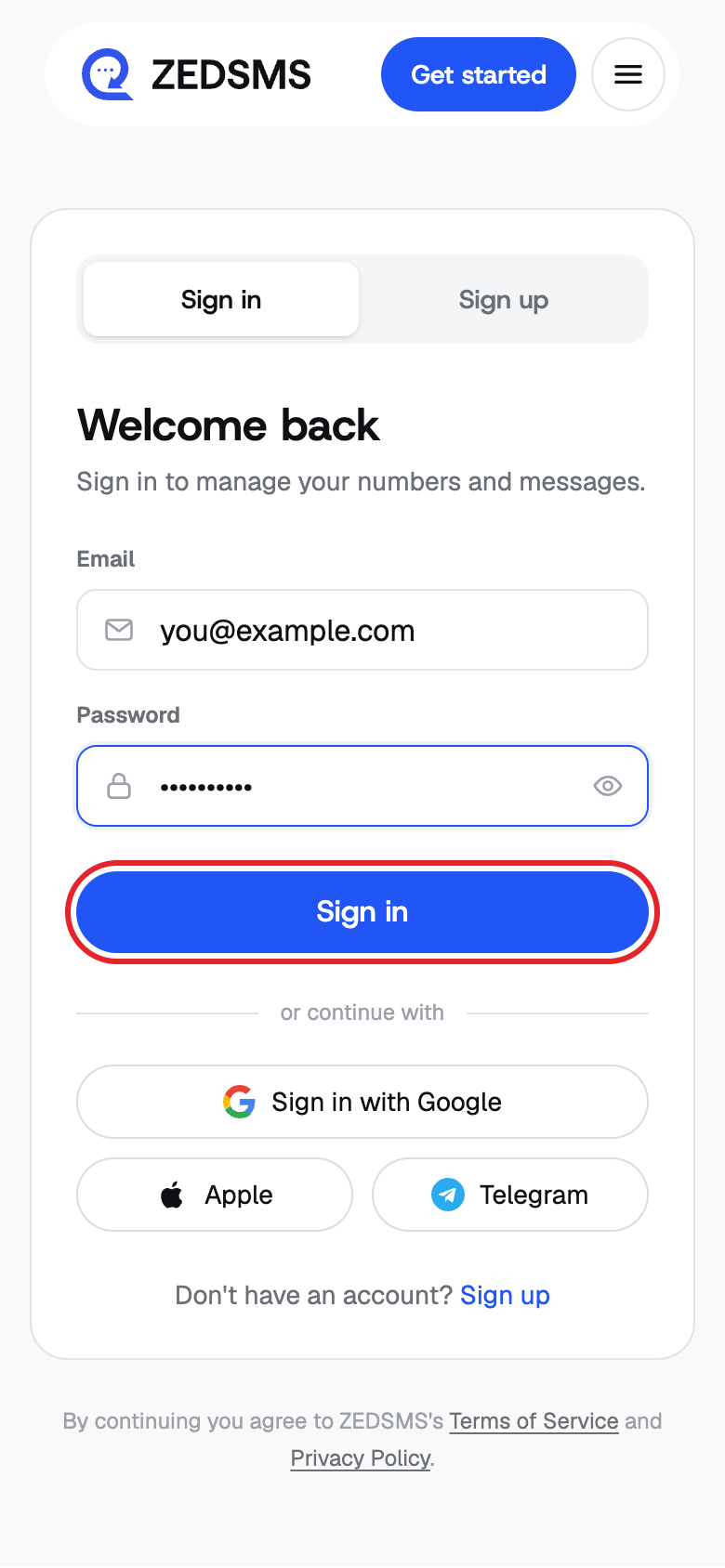
Step 12
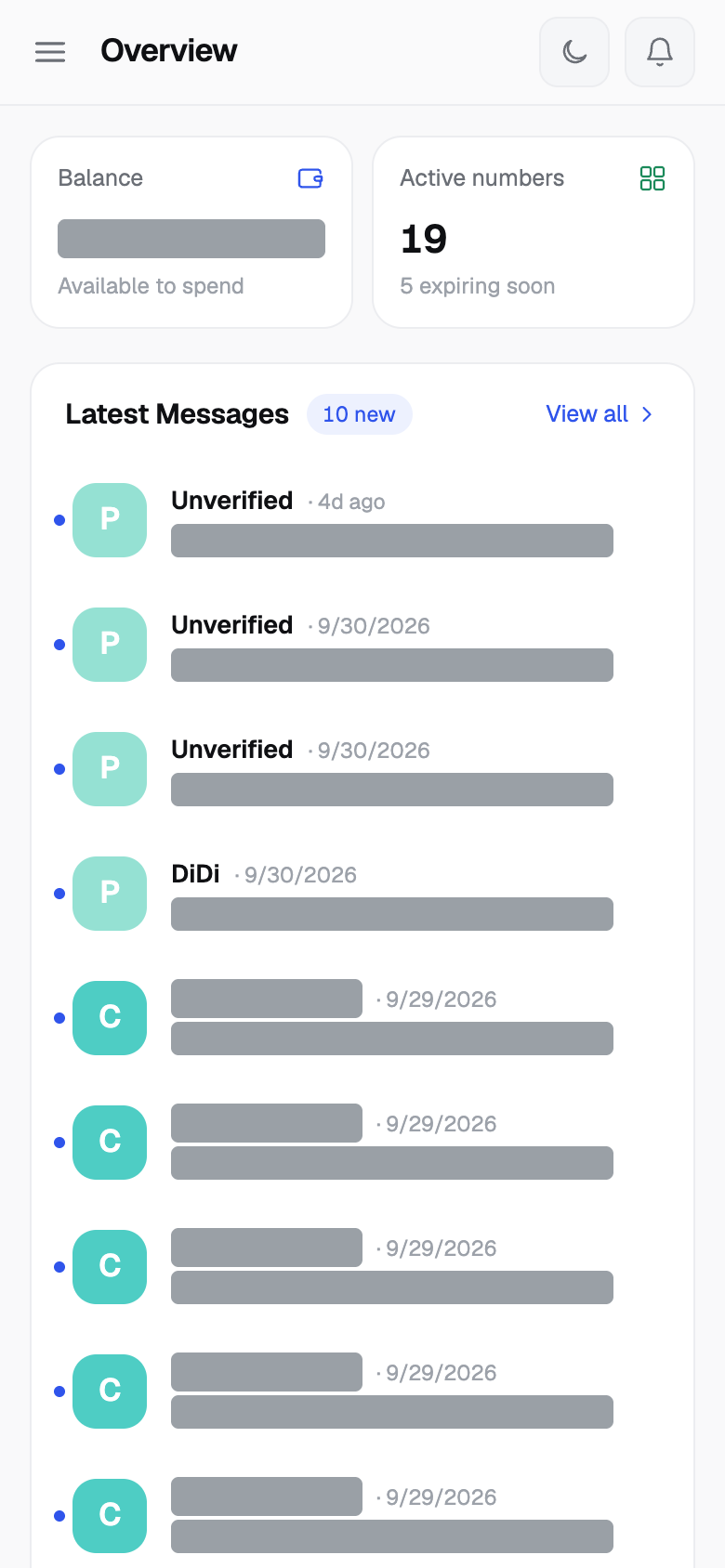
Step 13
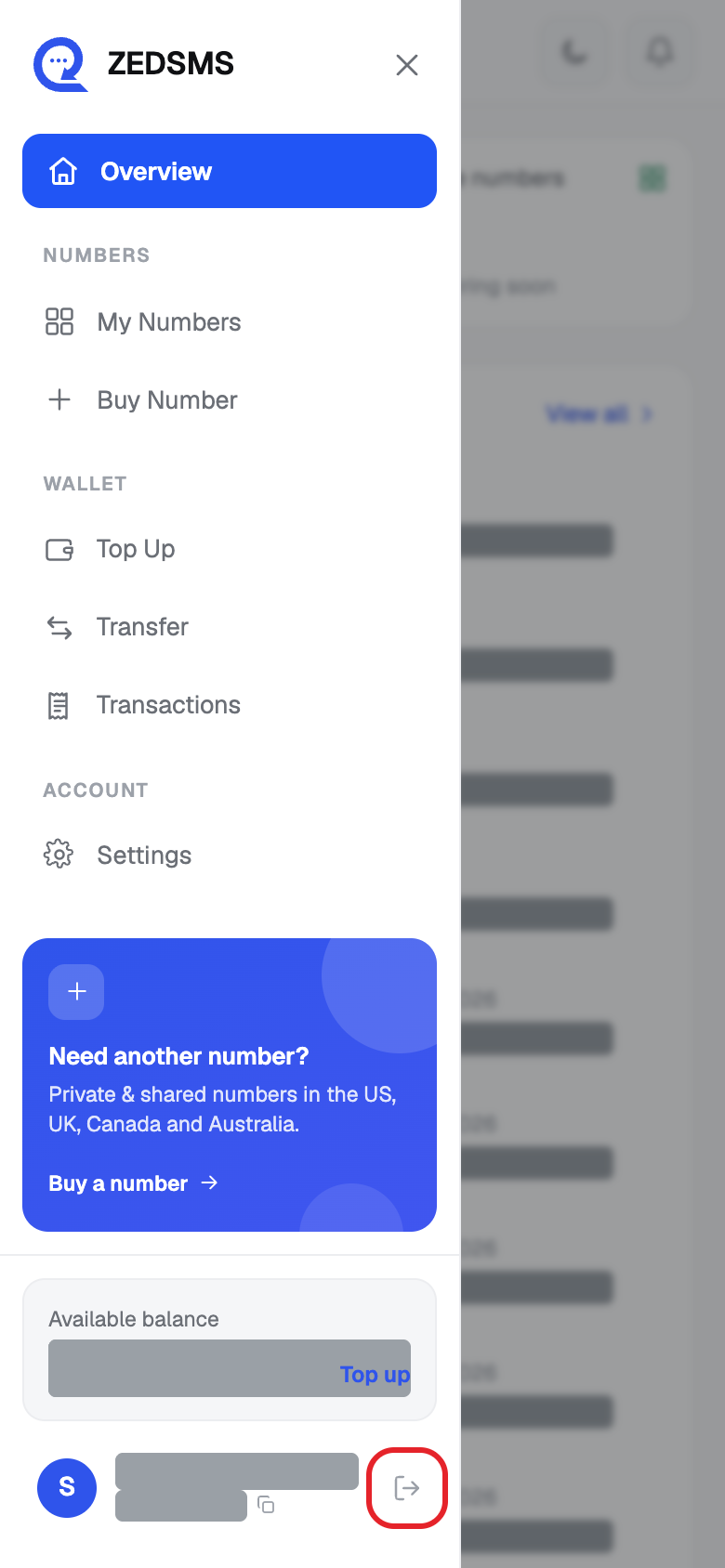
Step 14
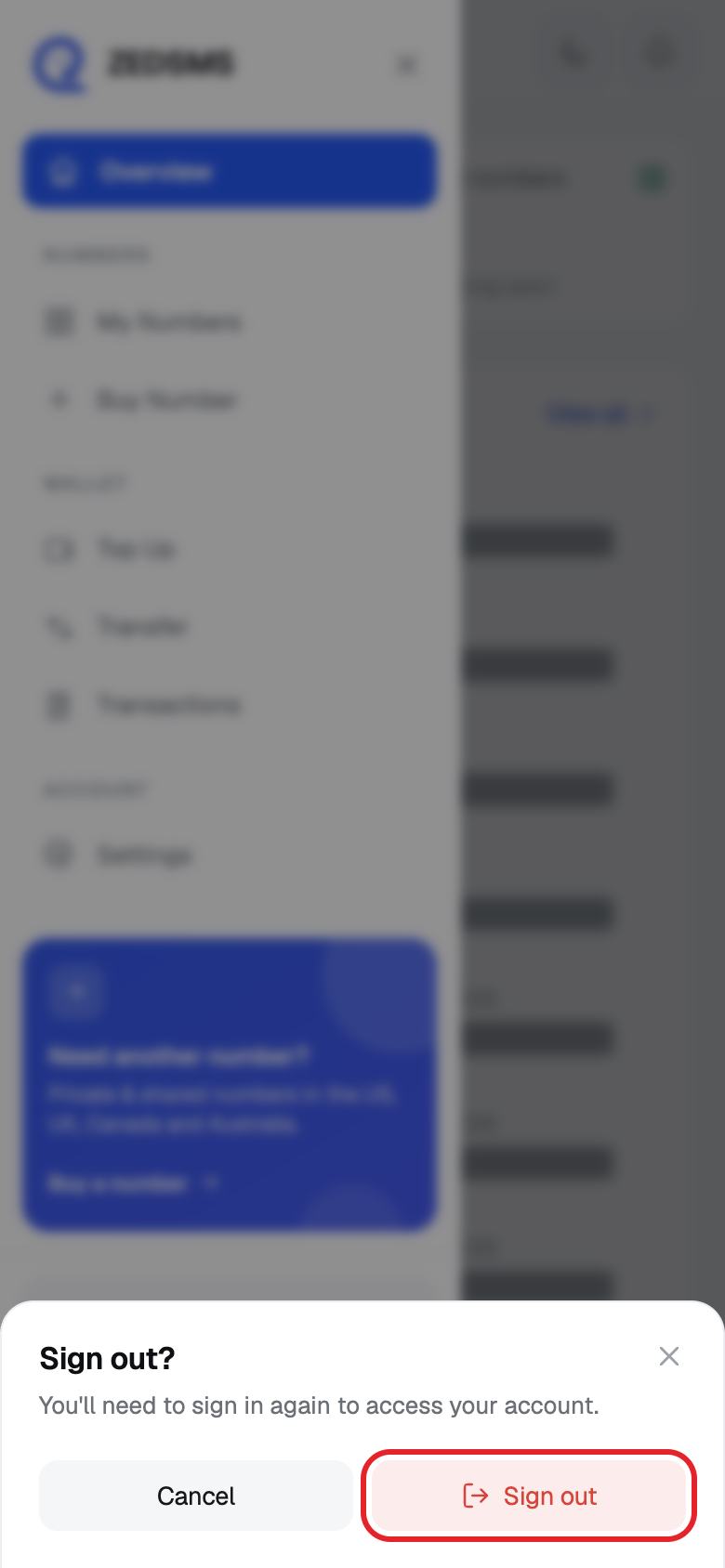
Good to know
- Your sign-in method can also be Google, Apple or Telegram. These buttons only appear when they are set up.
- After 3 wrong passwords the form locks for 30 seconds. It unlocks by itself.
- The two-step code screen lasts 5 minutes. After that you must sign in again.
- The Verify Your Email page checks for your confirmation every few seconds for about 15 minutes. Resend is possible every 2 minutes.
- Signing out ends this session only. To end other sessions, see the article on signed-in devices.
Common problems
- Email is required / Enter a valid email / Password is required Fill in the box and check the email has an @ and a dot, like name@example.com.
- Password doesn't meet the requirements below Make the password at least 8 characters with one uppercase letter, one lowercase letter and one number.
- Passwords don't match Type the same password in both boxes. Use the eye icon to check.
- You must accept the Terms to continue Tick the box next to the Terms of Service and Privacy Policy.
- Signup failed. Please try again. Try again. If the page shows a different reason (for example the email is already used), follow it or sign in instead.
- Incorrect email or password. 2 attempts left. Check your email and password. The number of attempts left is shown.
- Too many failed attempts. Try again in 30s. Wait for the countdown to finish, then try again.
- Your session has expired. Please sign in again. Sign in again.
- That sign-in attempt timed out. Please sign in again. Start again from the sign-in page and enter your code within 5 minutes.
- That code is not valid. Try again. Type the newest 6-digit code from your authenticator app, or use a recovery code.
- Account Disabled Click Contact Support or write to support@zedsms.com.