

Two-factor authentication adds a second step when you sign in: a 6-digit code from an app on your phone. It protects you even if someone learns your password.
Before you start
- An authenticator app such as Google Authenticator, Authy or 1Password on your phone.
- Somewhere safe to keep your recovery codes.
Steps
- Click Settings, open the Security tab and find Two-factor authentication. It shows On or Off.
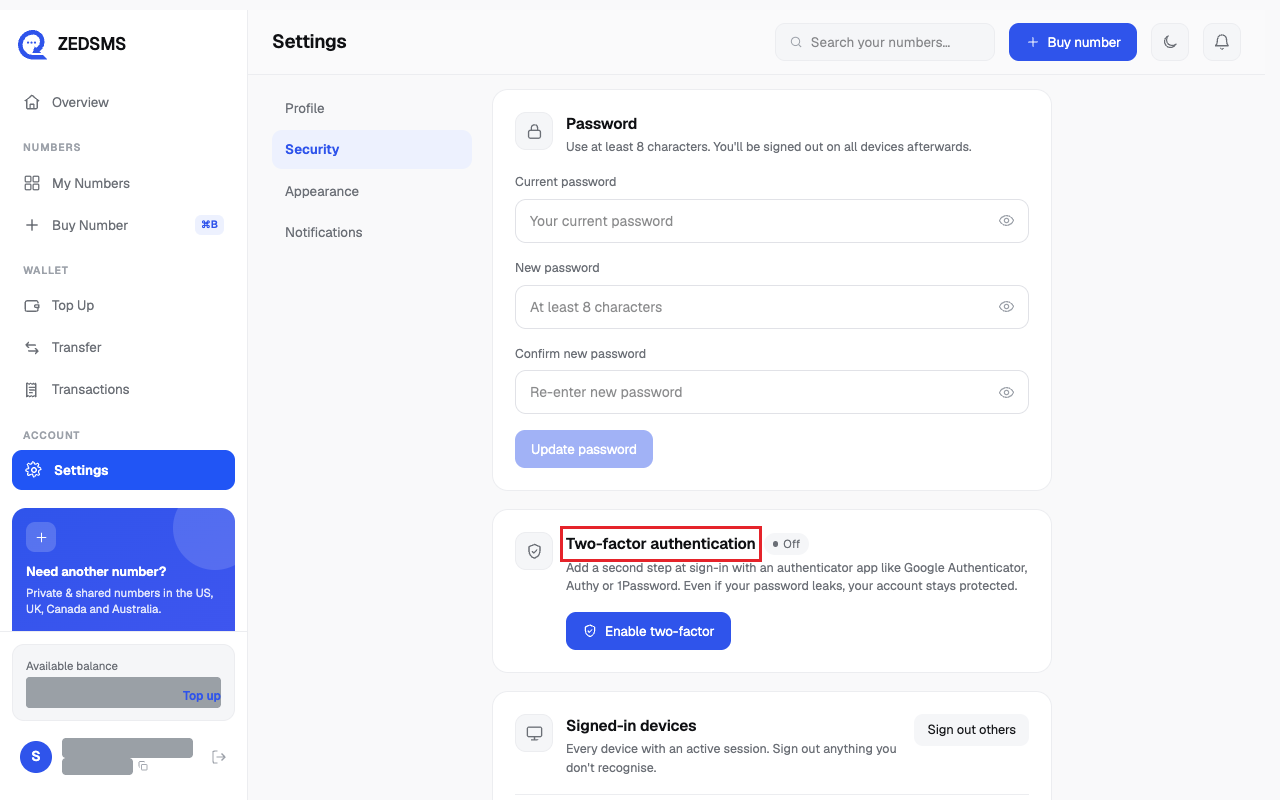
- Click Enable two-factor.
- In Set up authenticator, scan the QR code with your app. Or type the Setup key in by hand. Click Continue.
- In Verify your app, type the 6-digit code your app shows. Click Verify & enable.
- Save your recovery codes opens. Click Copy or Download and keep them safe. They are shown only once.
- Click I've saved them — sign me out. Sign in again. You now need a code each time.
To turn it off
- Open Settings → Security. Click Disable.
- Type your password and click Disable 2FA. Or click Keep enabled to stop.
If you lose your phone
On the sign-in code screen click Lost your phone? Use a recovery code. Each recovery code works once.
To get a new set, click Regenerate recovery codes, type your password and click Generate new codes. The old codes stop working at once.
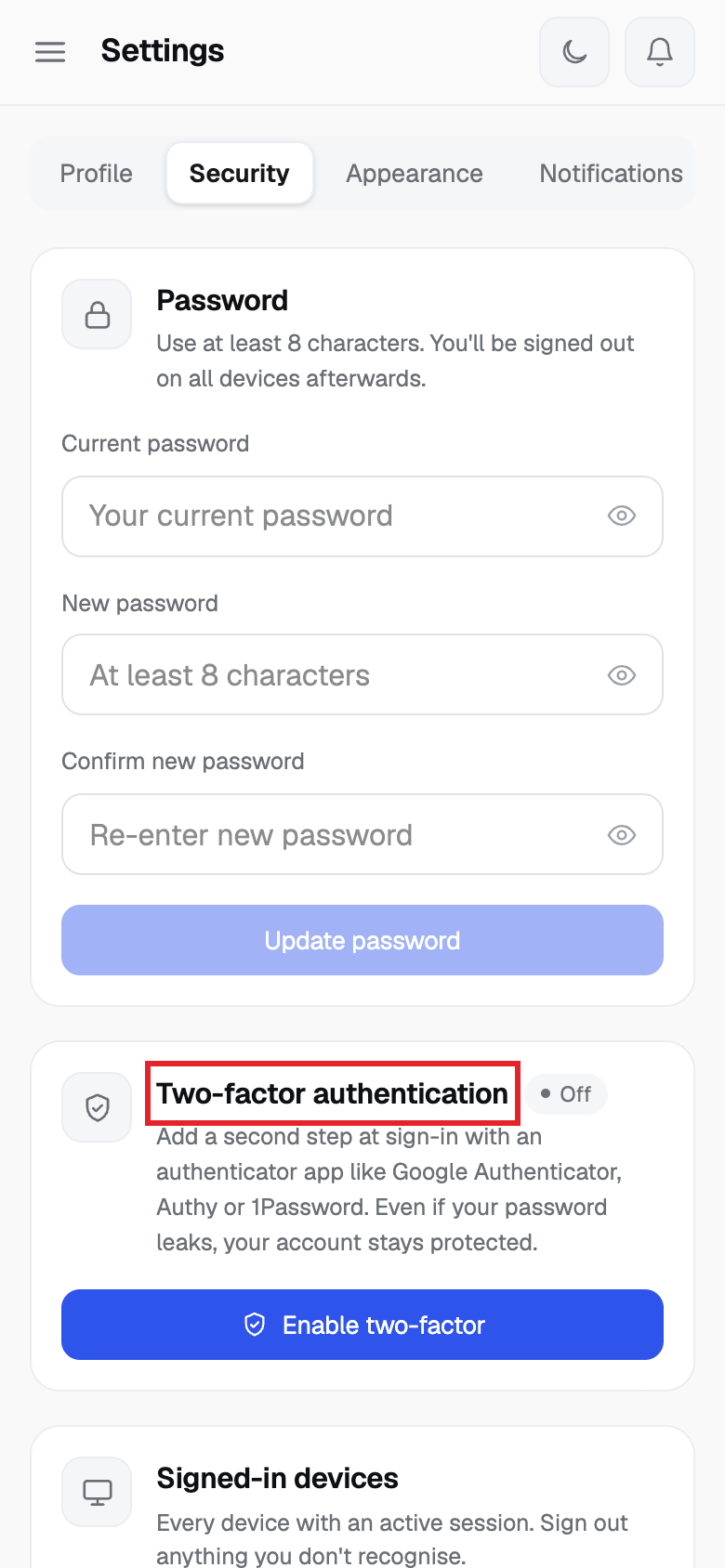
Using a phone? See the same steps on a small screen
Step 1
Good to know
- Turning it on or off signs you out on all devices.
- Recovery codes are shown once. Without them you would need support to get back in.
Common problems
- Enter the 6-digit code from your app. Type exactly 6 digits.
- That code isn't valid Use the newest code. Check your phone's time is automatic.
- Enter your account password to confirm. Type your password in the box.