

Auto-renew keeps a number alive by renewing it for you. Turn it on or off for each number.
Before you start
- The number is active. Auto-renew cannot be changed on an expired number.
- For auto-renew to work, keep enough balance in your account.
Steps
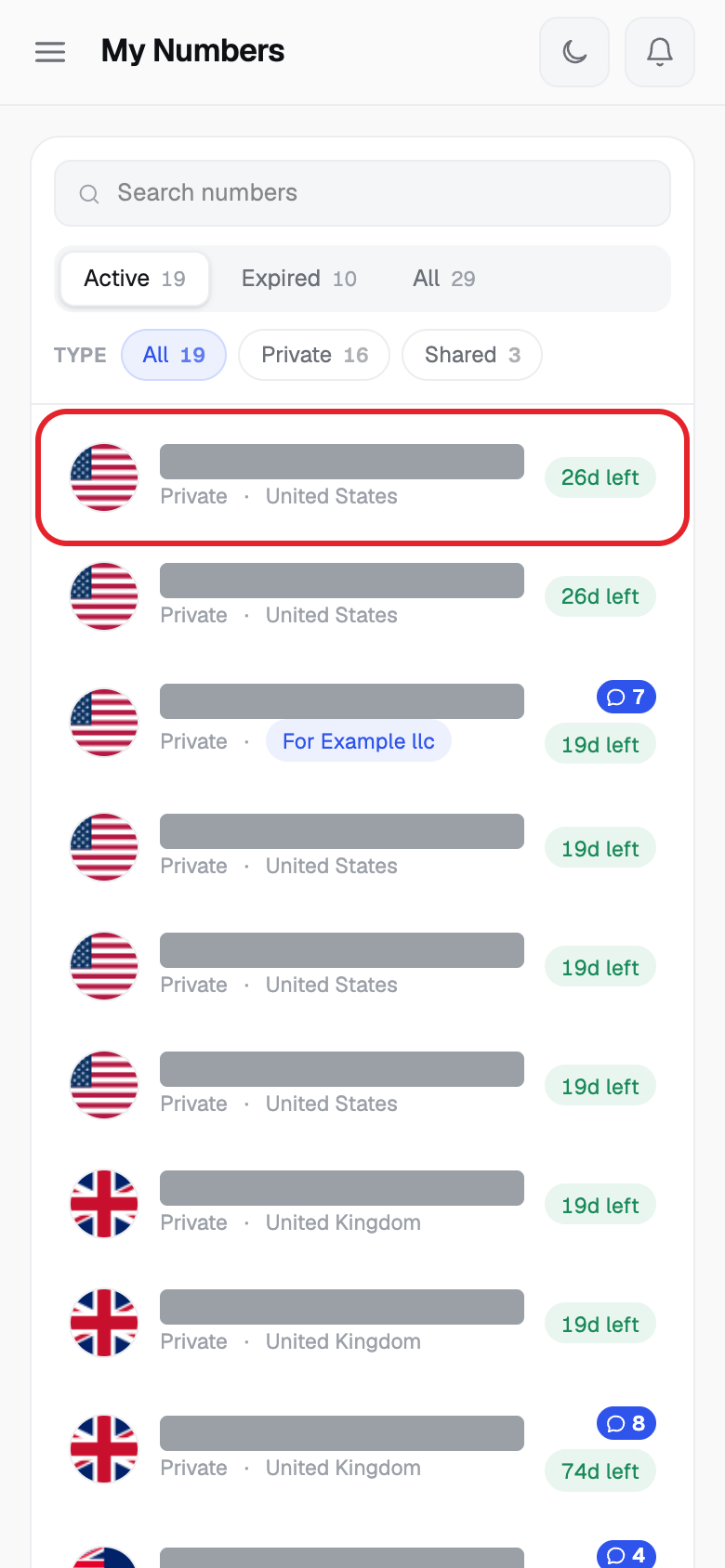
- Click My Numbers, then click the number.
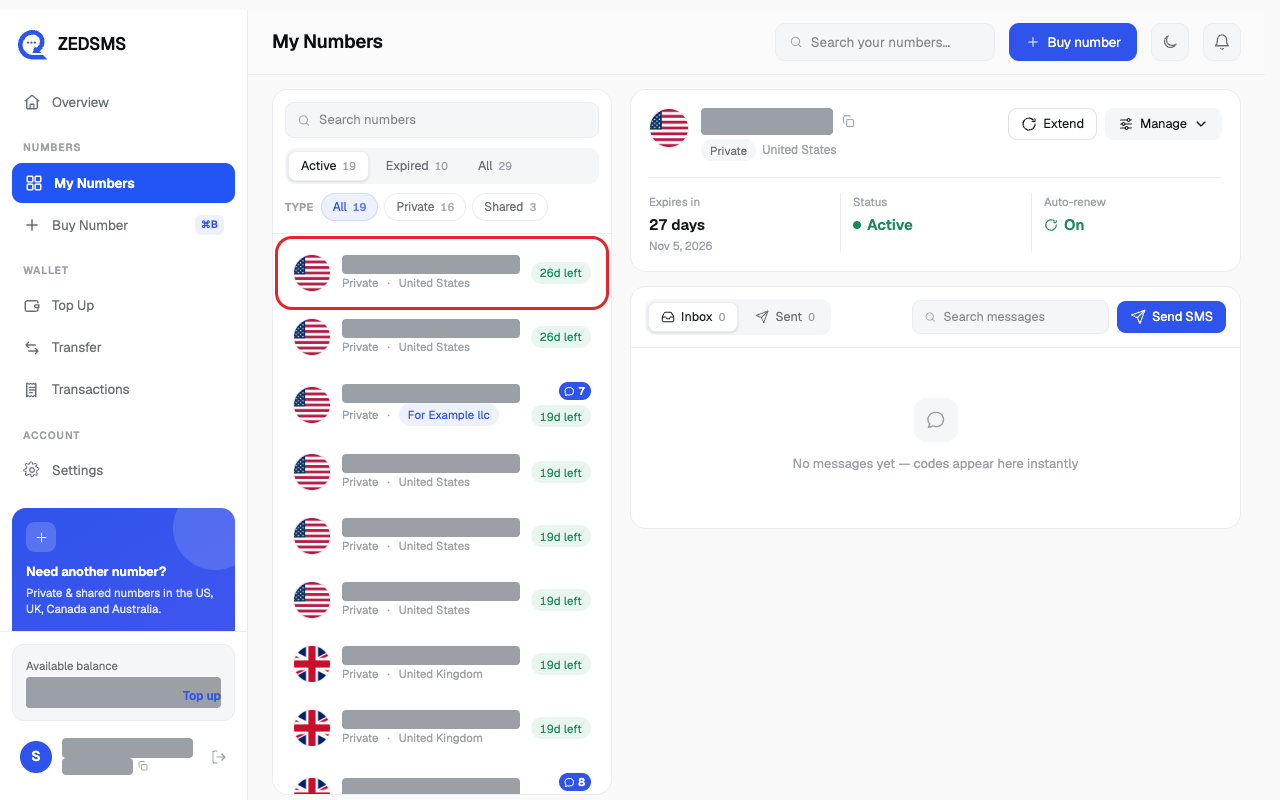
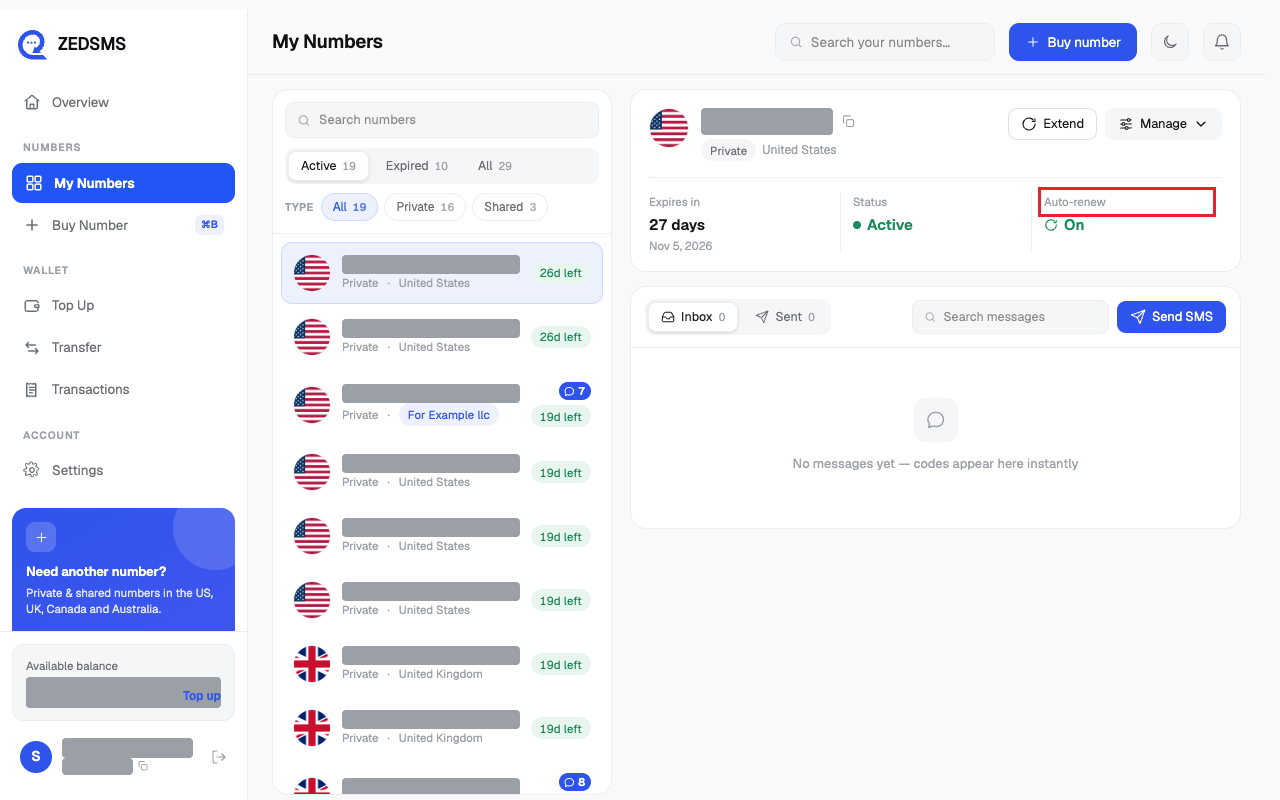
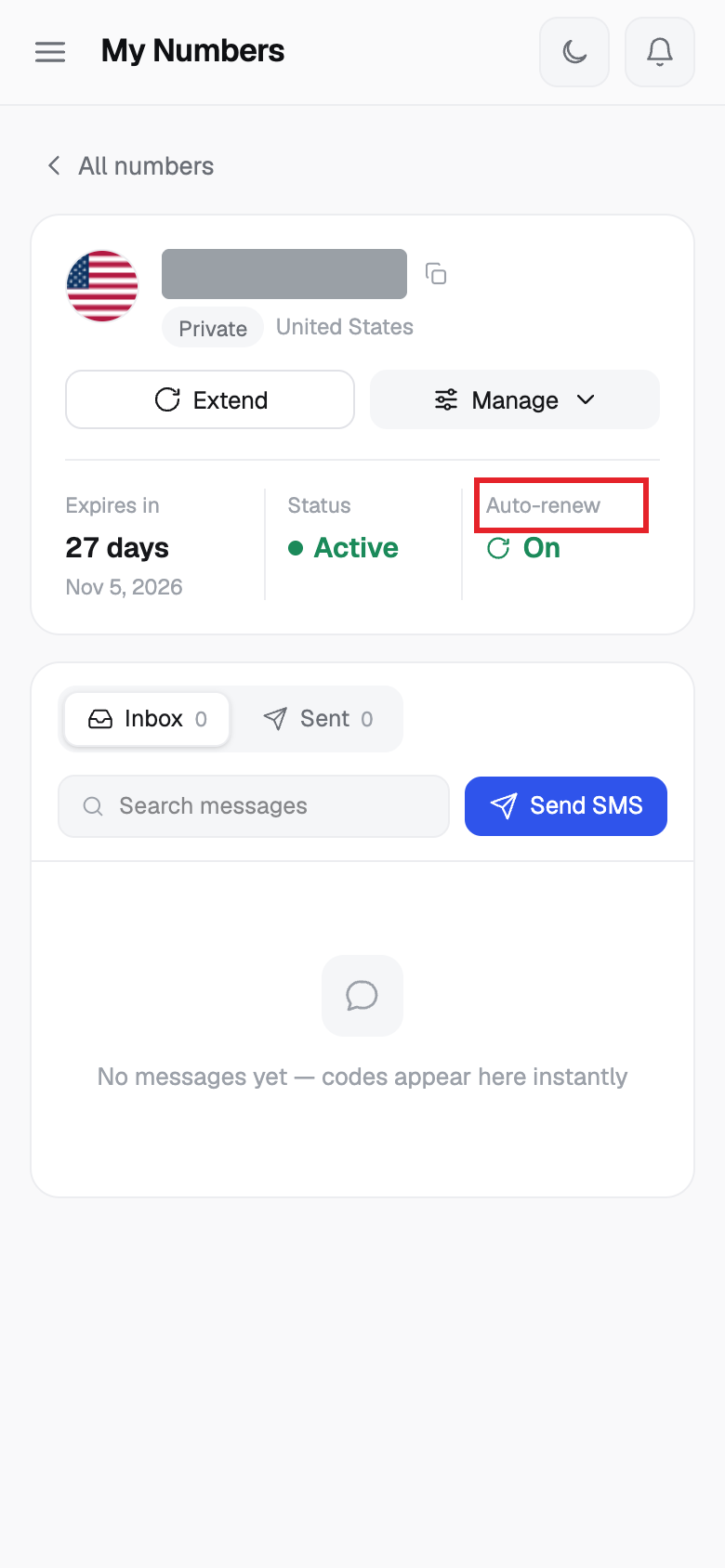
- Look at Auto-renew. It says On or Off.
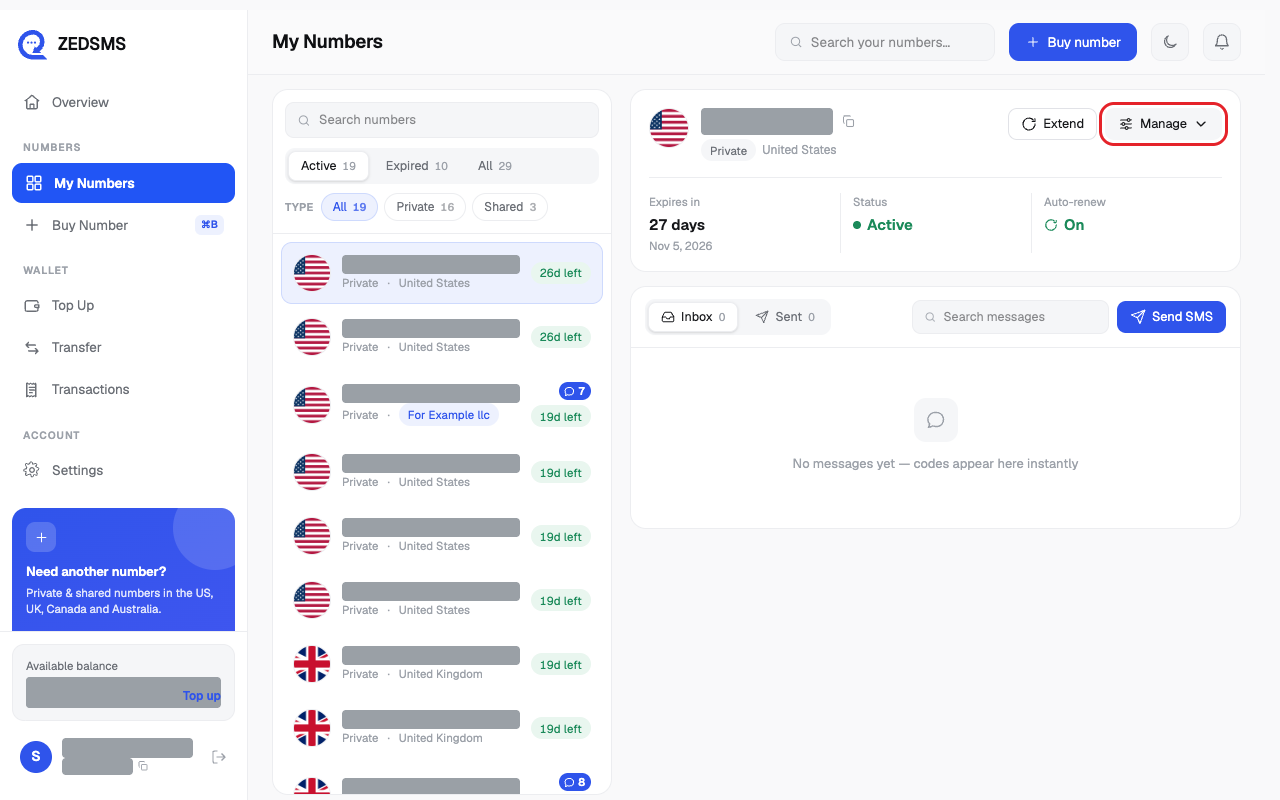
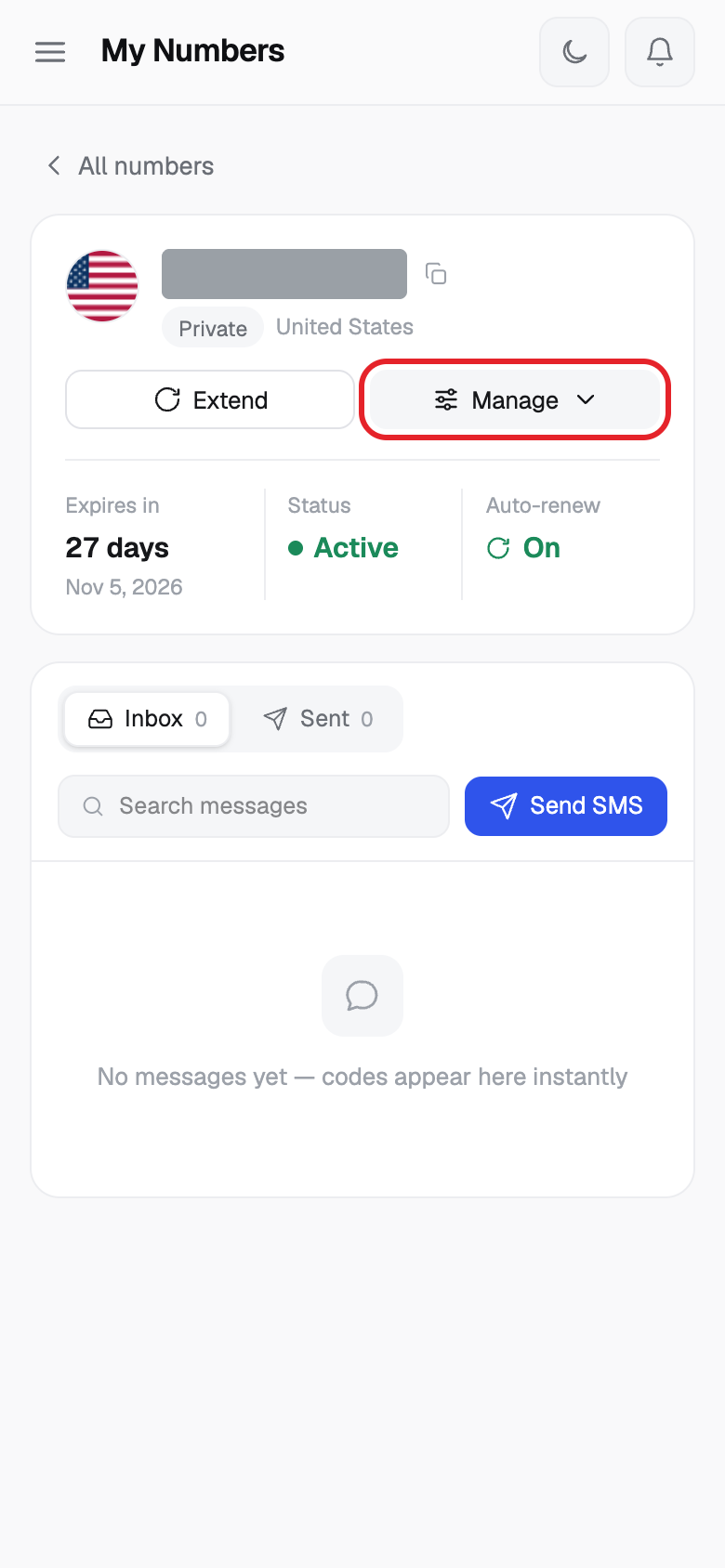
- Click Manage.
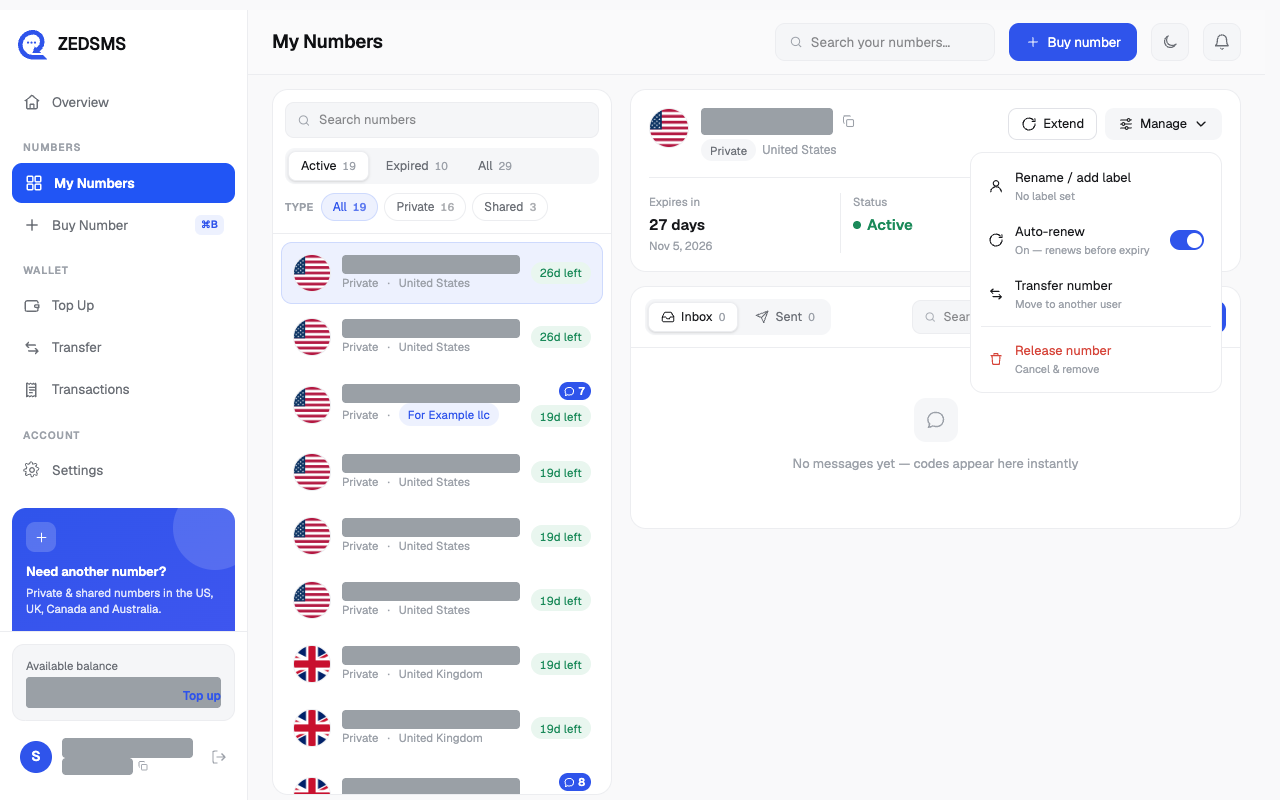
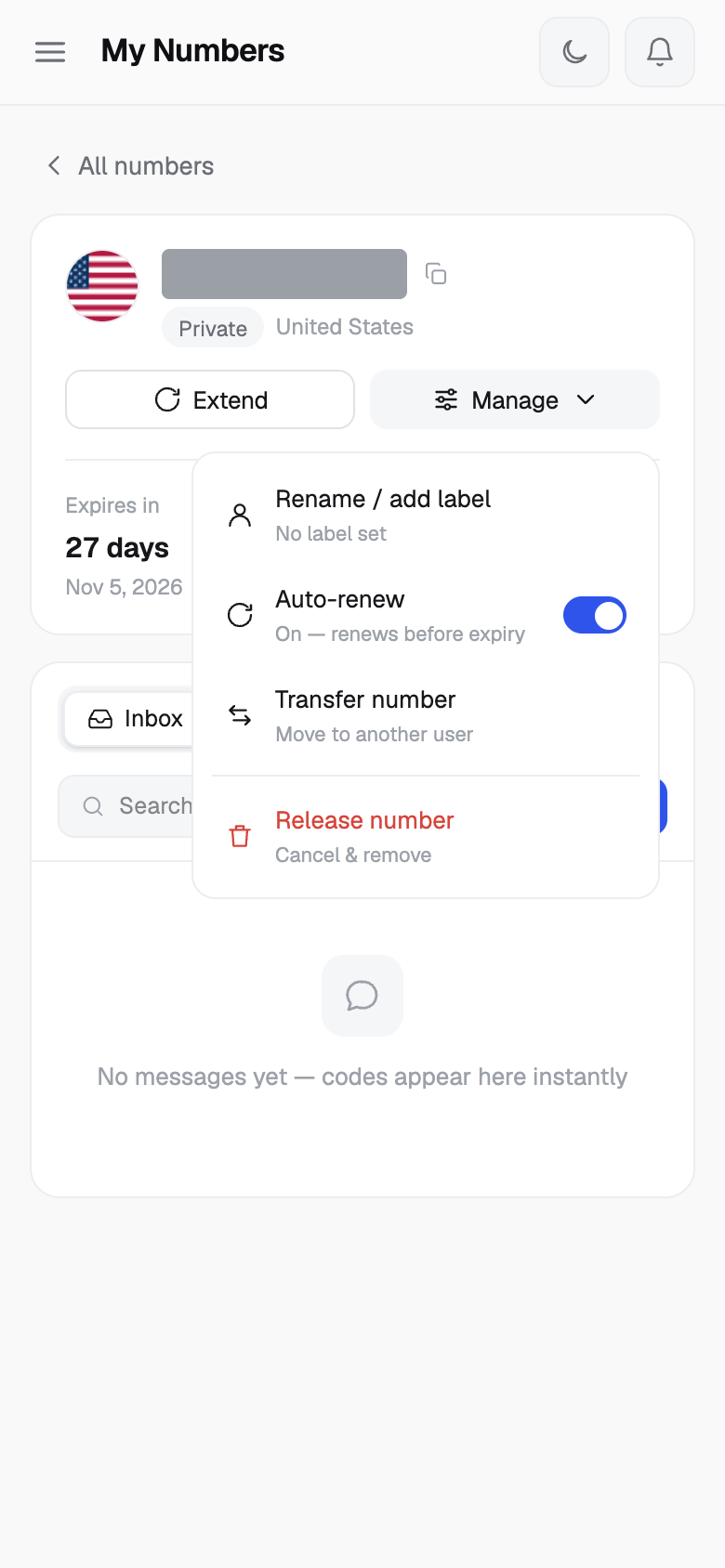
- Click Auto-renew. It switches at once, with no extra question. A message says Auto-renew turned on or Auto-renew turned off.
Using a phone? See the same steps on a small screen
Step 1
Step 2
Step 3
Step 4
Good to know
- The menu shows On — renews before expiry or Off under the words Auto-renew.
- Our Terms say: when auto-renew is on and your balance covers the renewal fee, the number renews automatically 7 days before it expires. When it is off, the number expires at the end of the paid period.
- You can change it any time, one number at a time.
- We do not refund a renewal that was charged because auto-renew was still on. Turn it off before the renewal date if you do not want it.
Common problems
- Failed to update auto-renew Try again. This can happen if the number is already expired or is not yours.
- Updating... Wait for the switch to finish before clicking again.
- Auto-renew is on but my number did not renew Check that your balance covers the renewal fee. Add balance and renew it yourself with Extend.