

See every top-up, purchase and transfer on your account, and save the list as a file.
Before you start
- You are signed in.
Steps
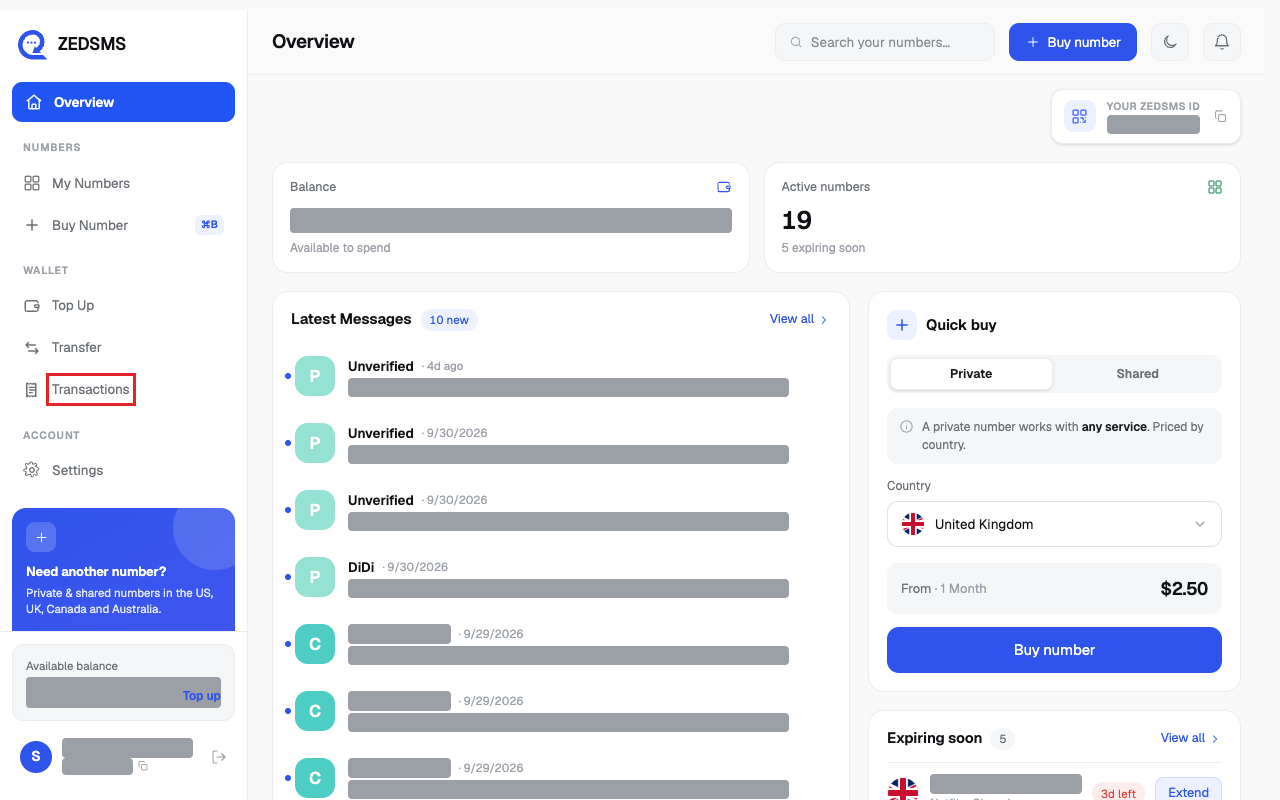
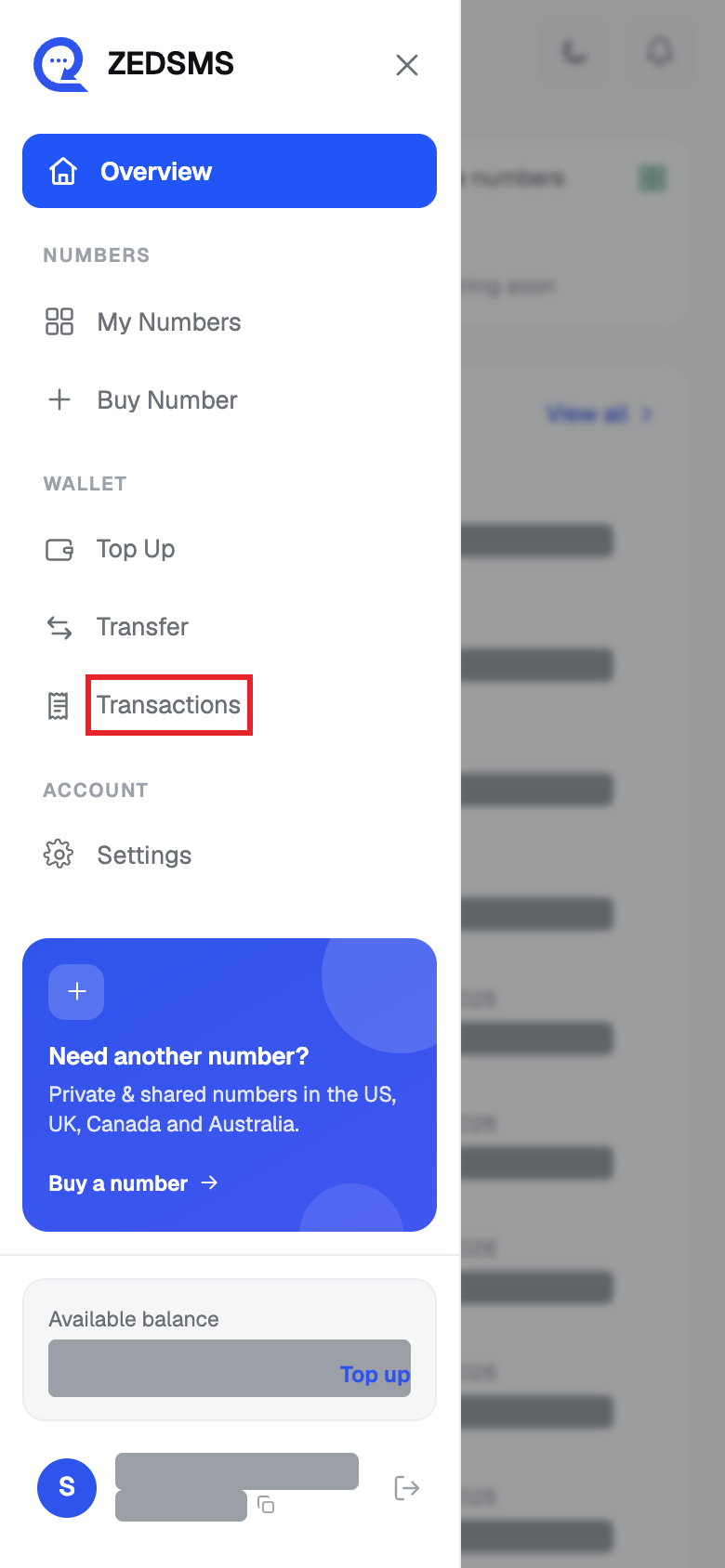
- Click Transactions in the left menu. On a phone, open the menu first.
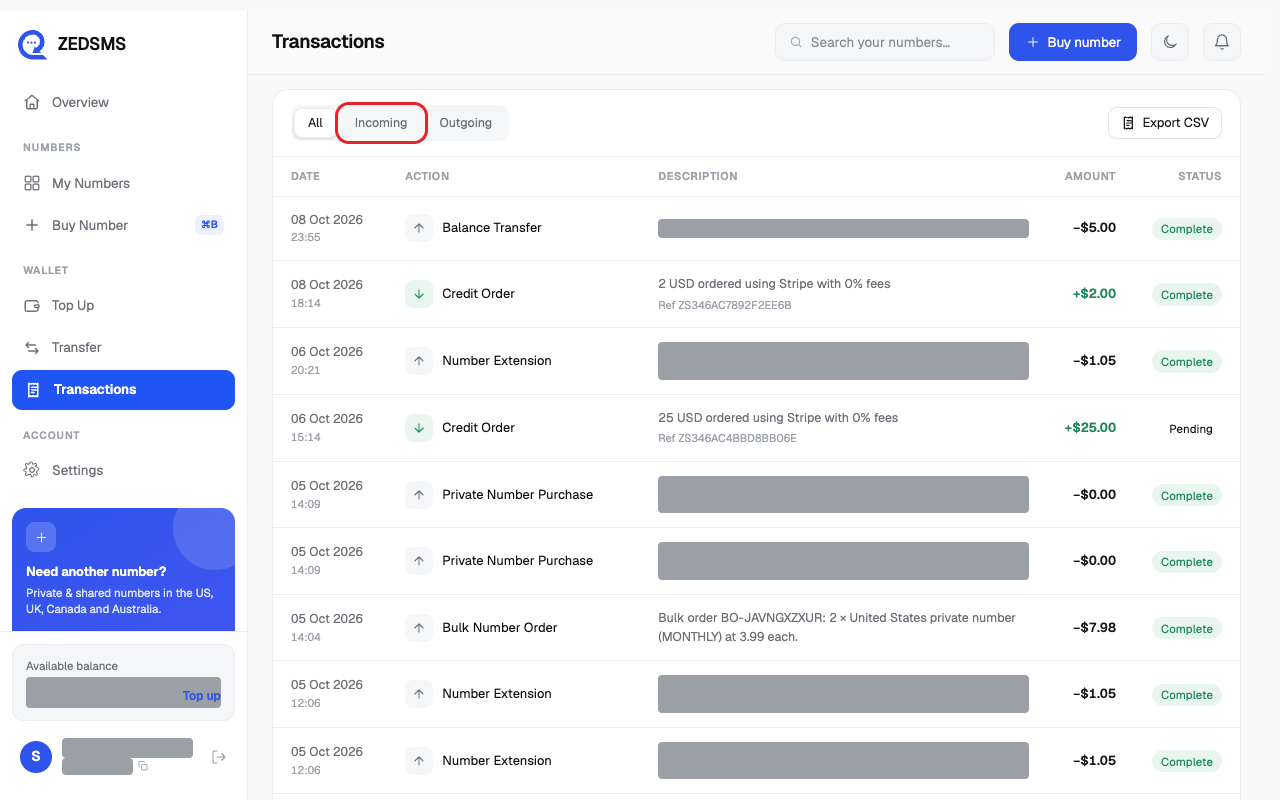
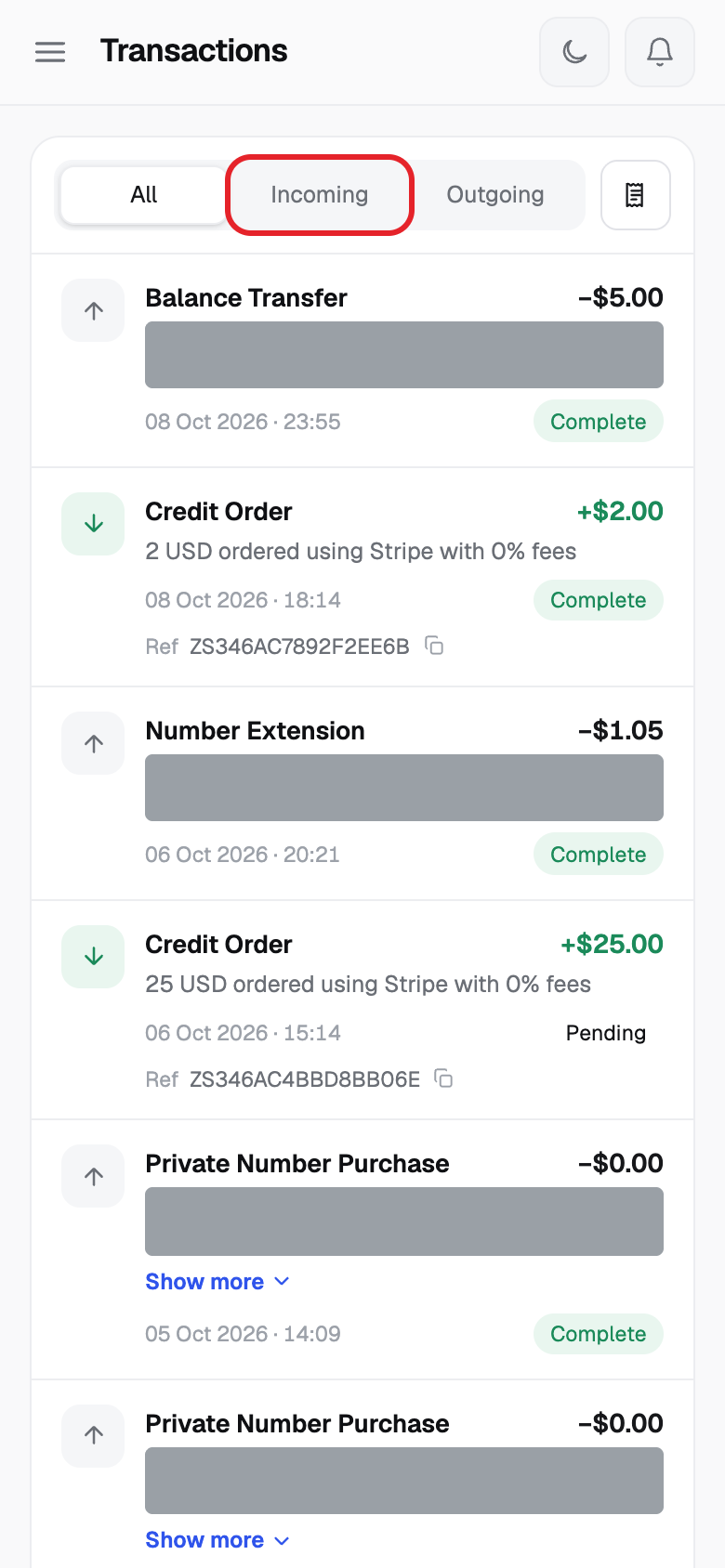
- Click All, Incoming or Outgoing to filter the page you are looking at.
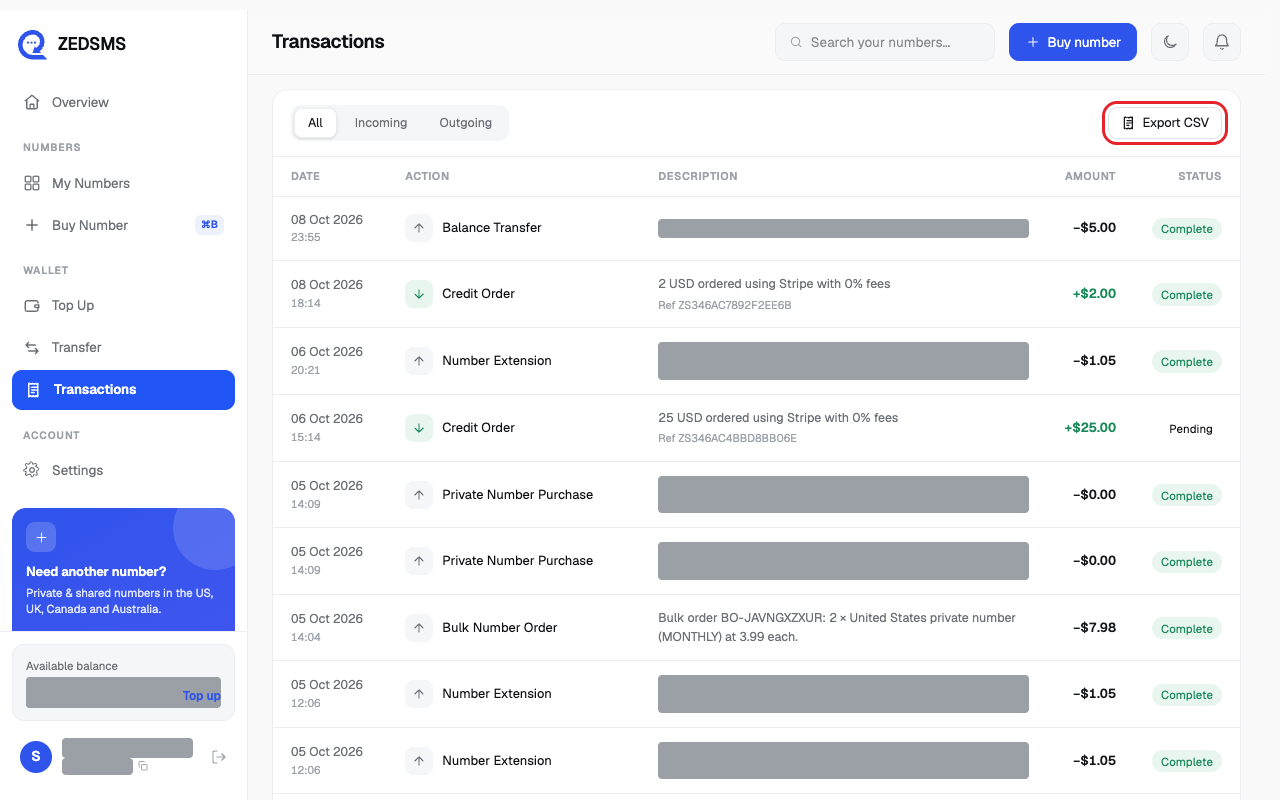
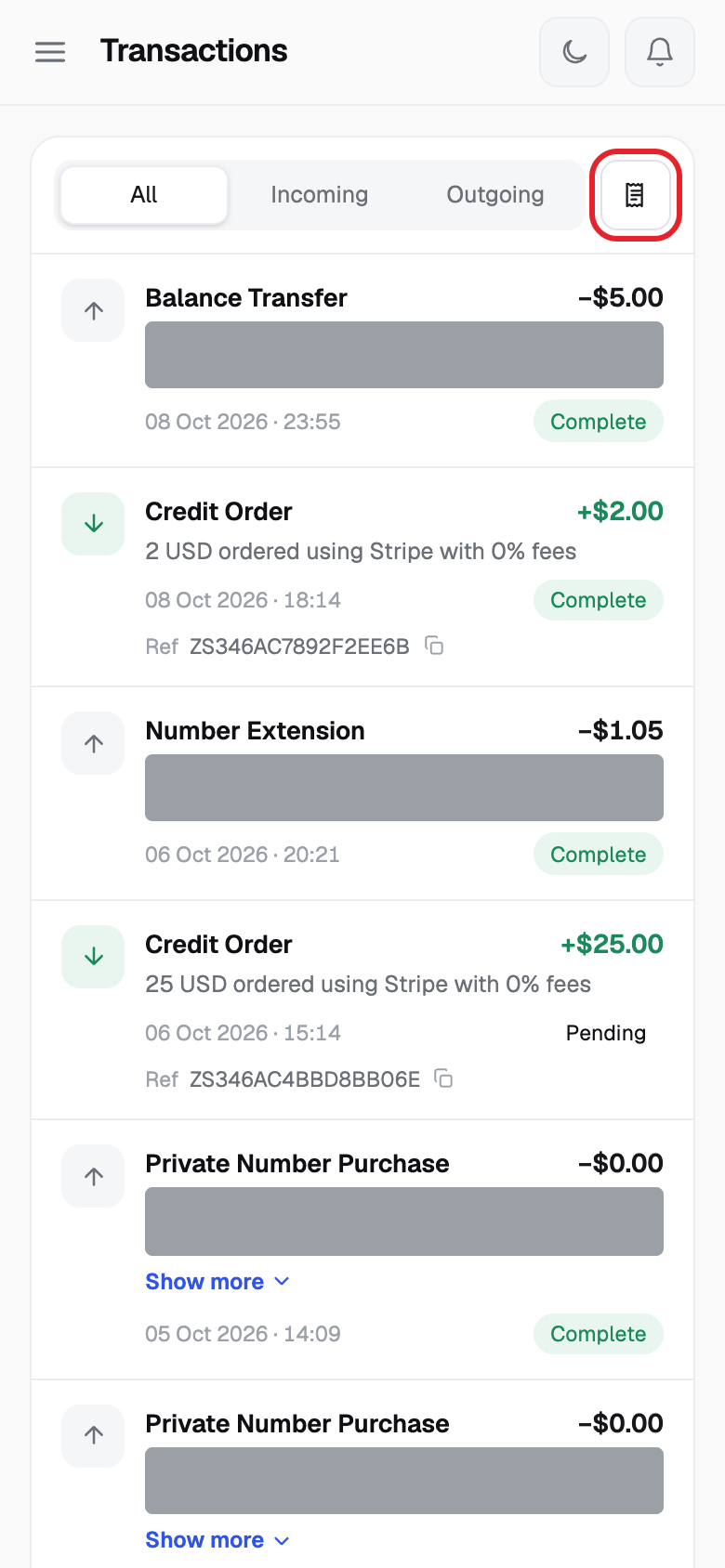
- Click Export CSV to download the list as a file.
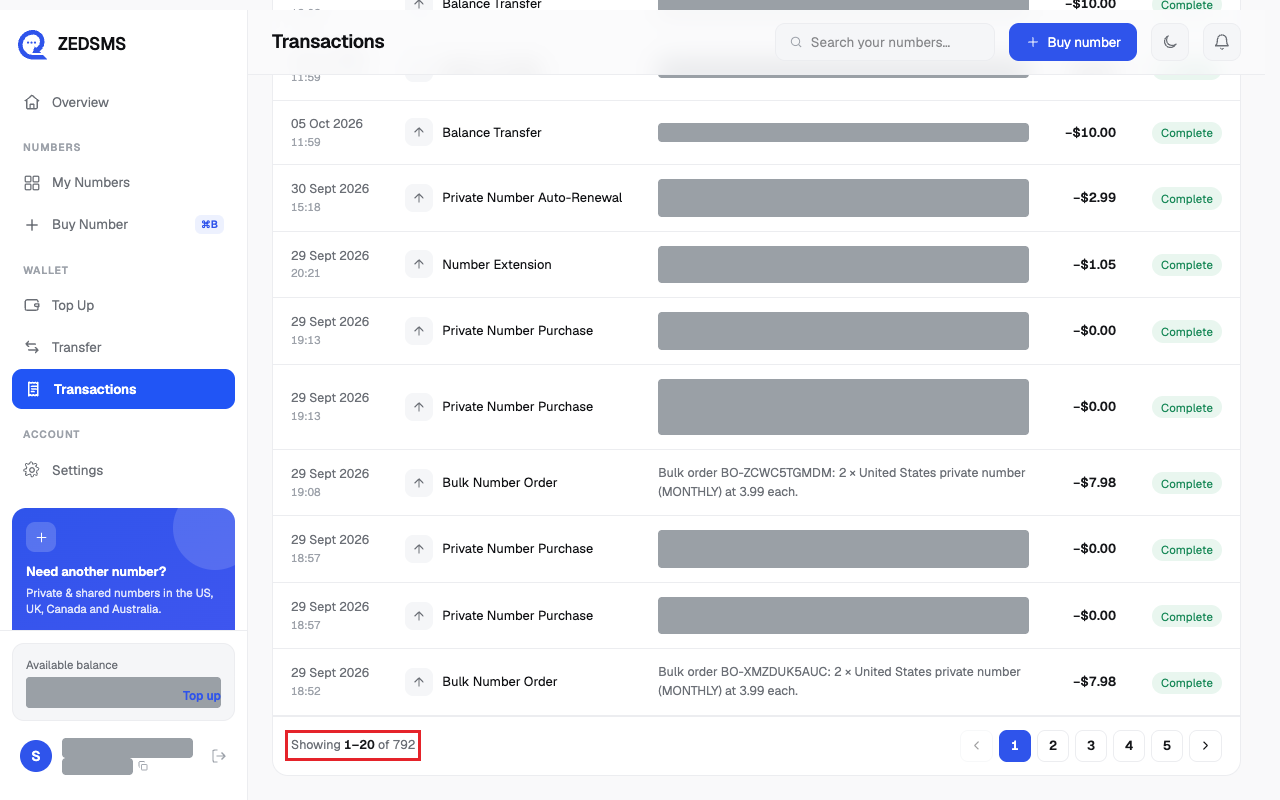
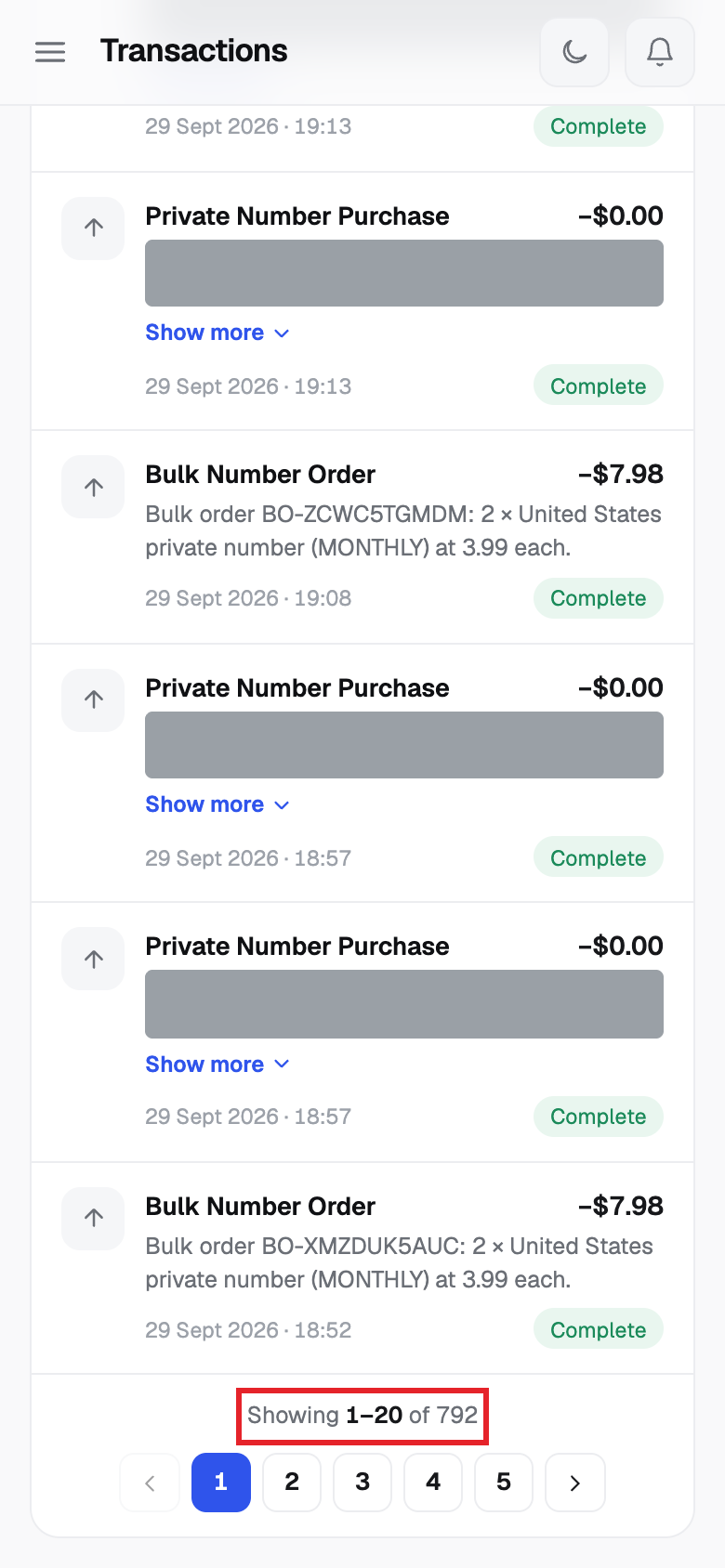
- Use the page numbers at the bottom to see older items.
Using a phone? See the same steps on a small screen
Step 1
Step 2
Step 3
Step 4
Good to know
- Each row shows the date, action, description, amount and status. Phones show it as a list.
- Status can be Pending, Complete, Partial or Declined.
- Incoming money is green with a plus. Outgoing money has a minus.
- Each item has a reference. Click the copy icon. Support will ask for it if you need help.
- The filters and Export CSV work on the page you are looking at, not on all pages.
Common problems
- No transactions yet — top-ups, purchases and transfers appear here You have not done anything yet.
- Could not load transactions Click Retry.
- No incoming entries on this page. Try another page or click All.