

Choose a new password for your account.
Before you start
- You know your current password. (If you sign in with Google, Apple or Telegram, you may not have one.)
Steps
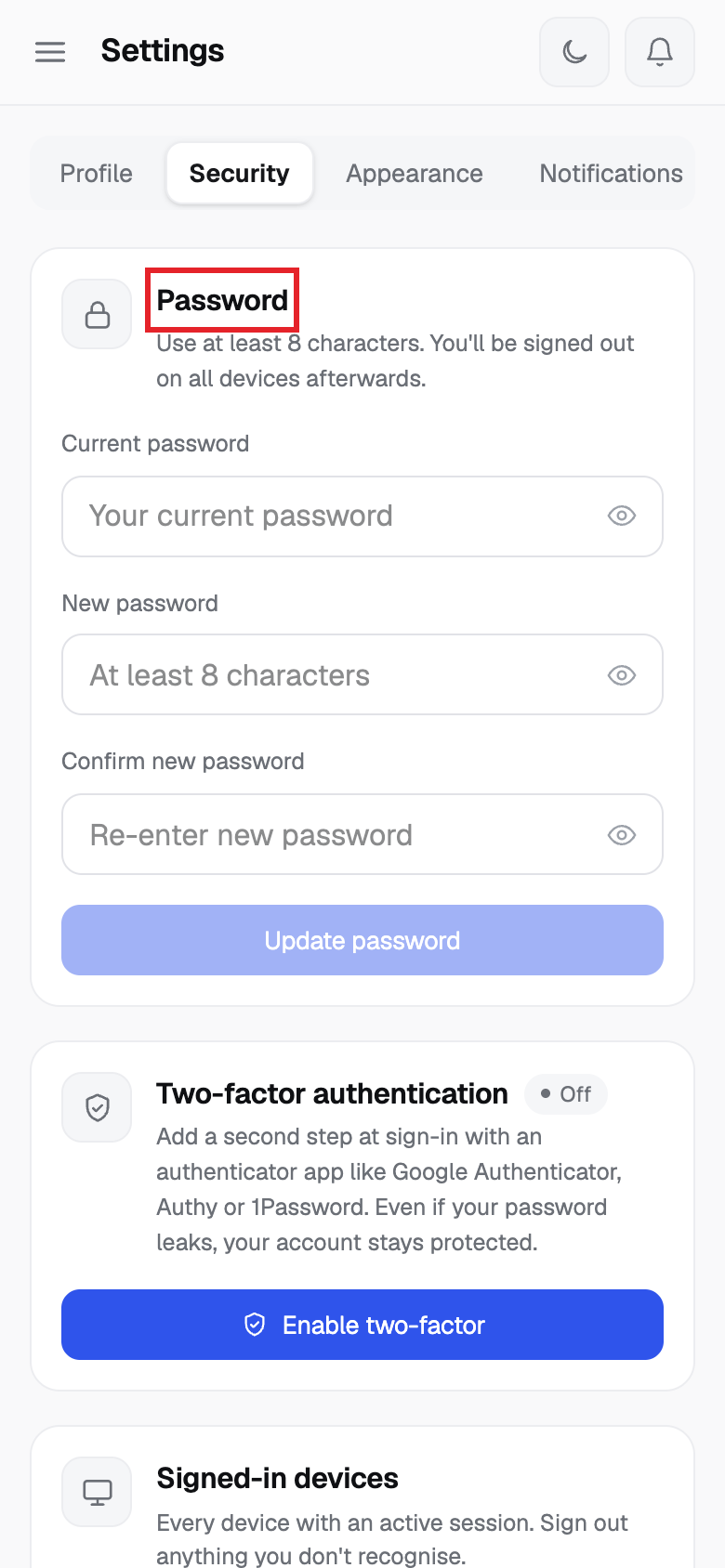
- Click Settings, then open the Security tab. Find Password.
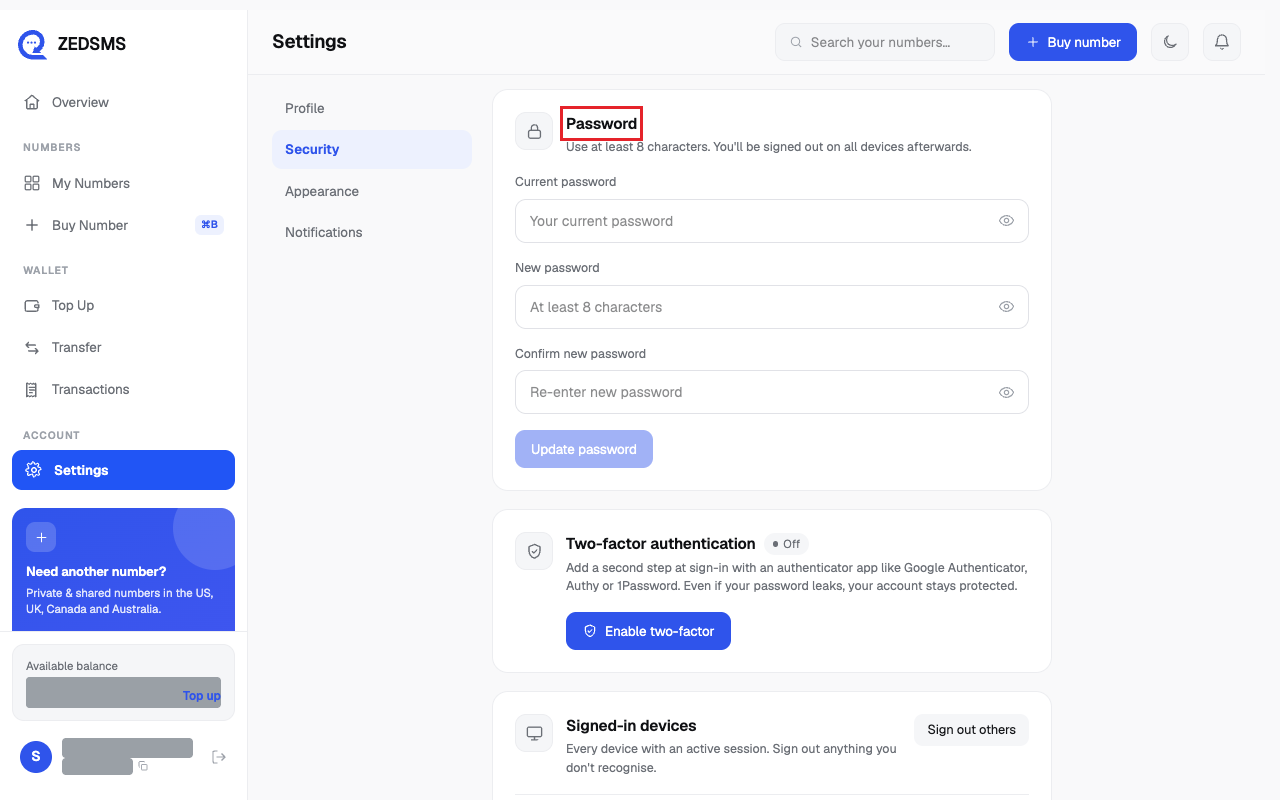
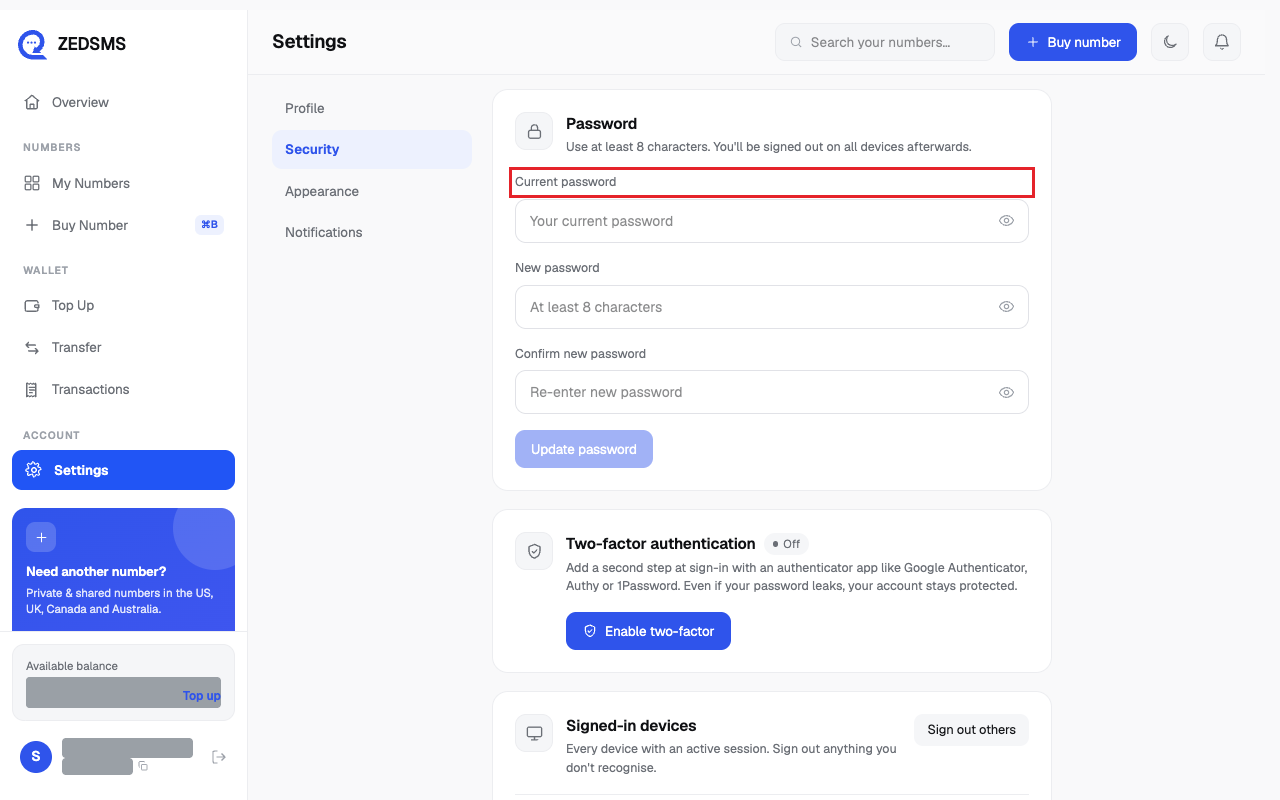
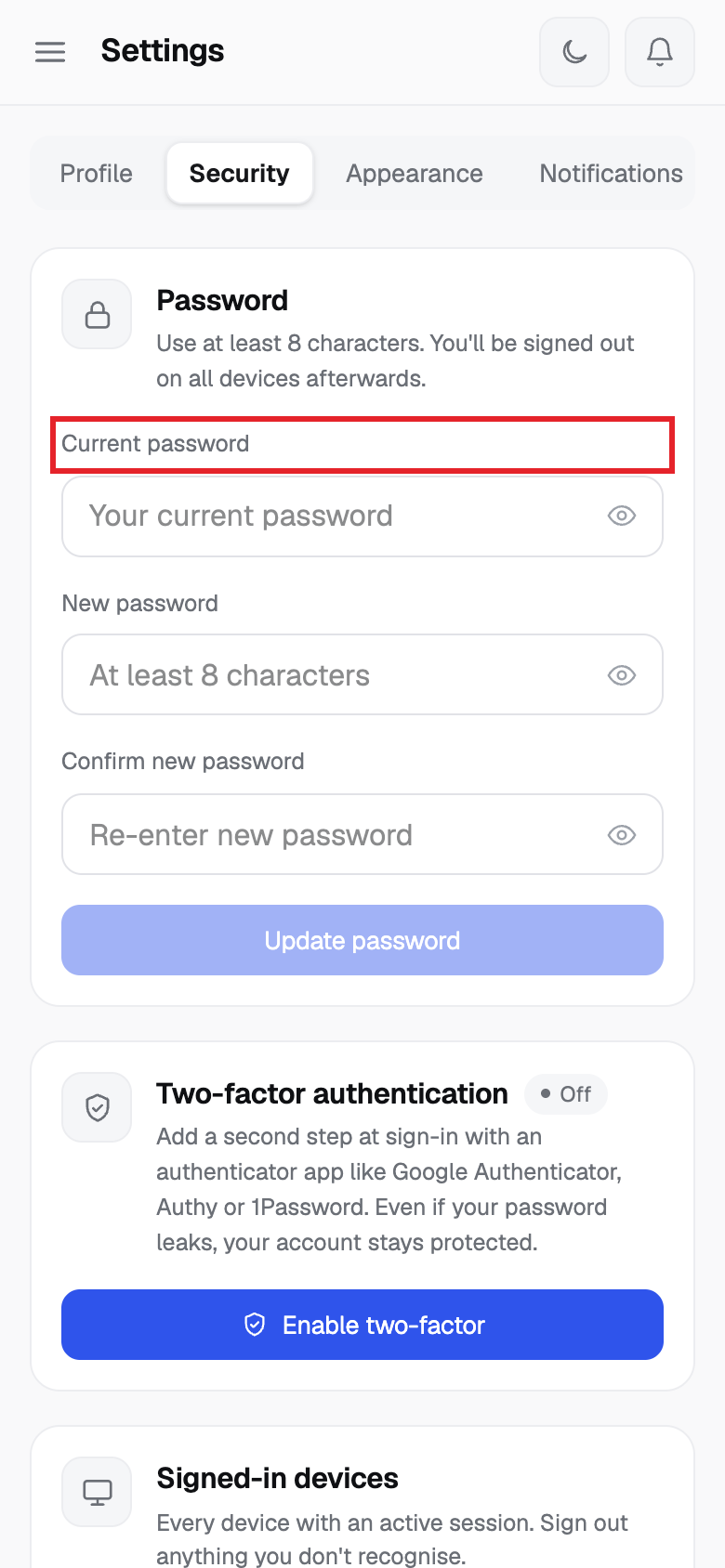
- Type your current password in Current password.
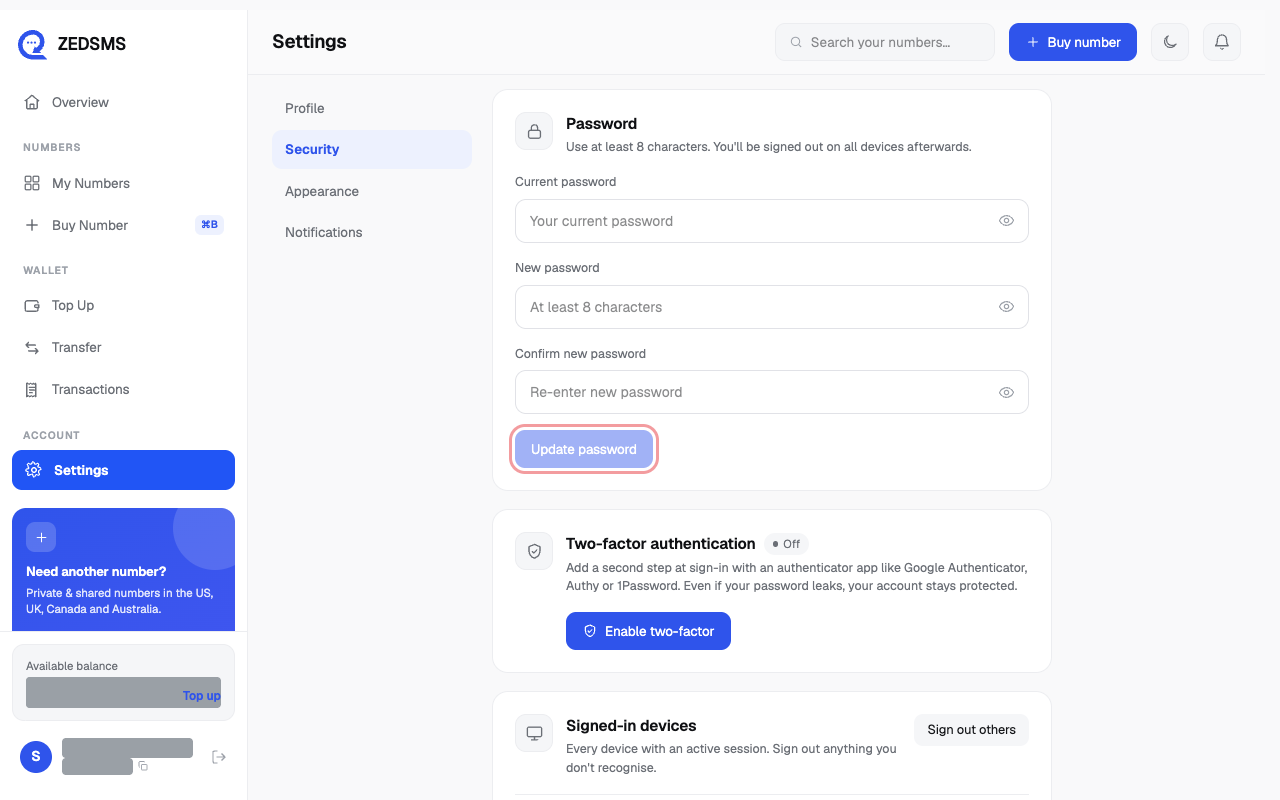
- Type the new one in New password and again in Confirm new password. A bar shows Too short, Weak, Fair, Good or Strong.
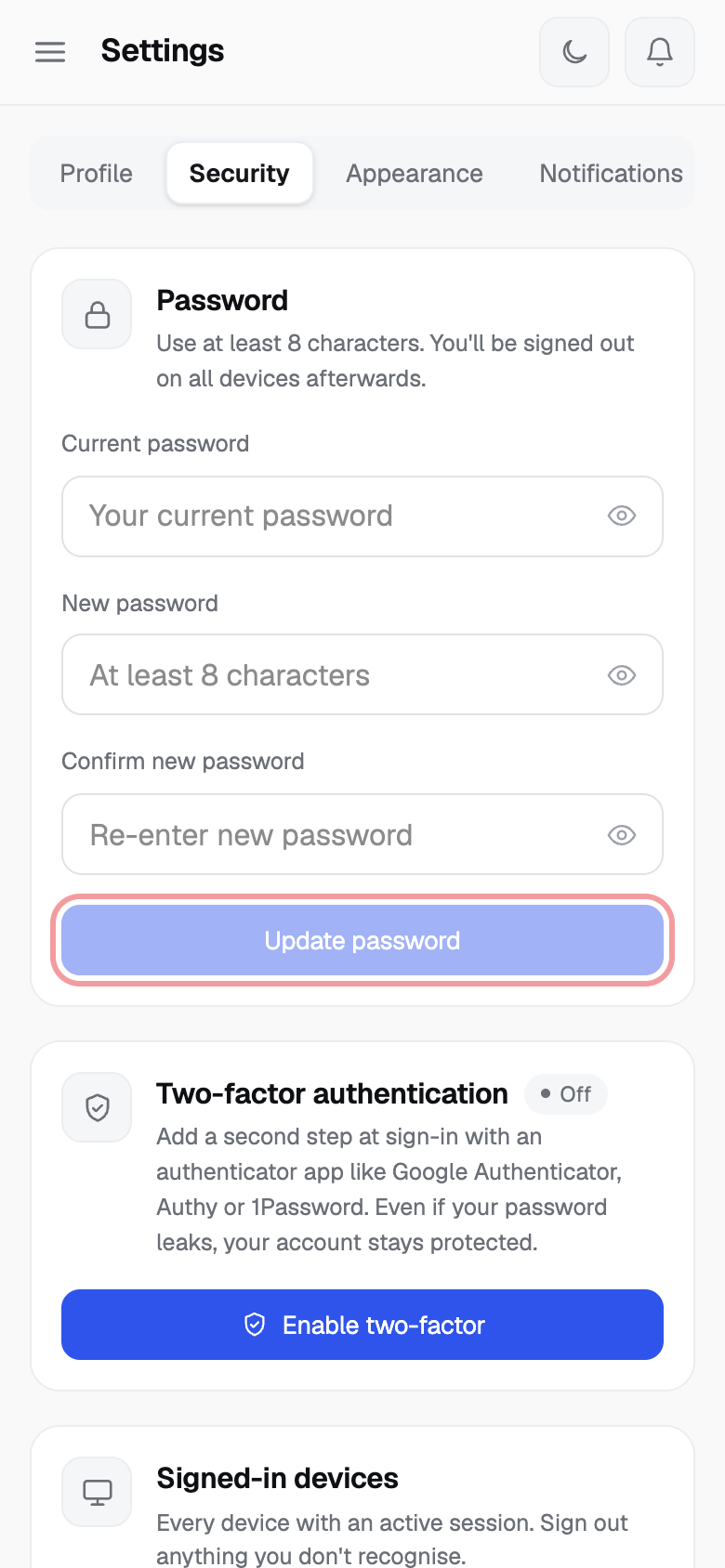
- Click Update password.
Using a phone? See the same steps on a small screen
Step 1
Step 2
Step 4
Good to know
- Use at least 8 characters. Mix uppercase, lowercase, numbers and symbols for a stronger password.
- You are signed out on all devices afterwards (Password updated — signing you out). Sign in again with the new password.
- The button stays off until the two new passwords match.
Common problems
- Passwords don't match Type the same new password in both boxes.
- Current password does not match Type your current password again.
- Could not change your password Try again. If it keeps happening, email support@zedsms.com.