

Add a channel and ZEDSMS sends your incoming SMS and account alerts to your email or to Telegram.
Before you start
- For email: an inbox you can open.
- For Telegram: the Telegram app.
Steps
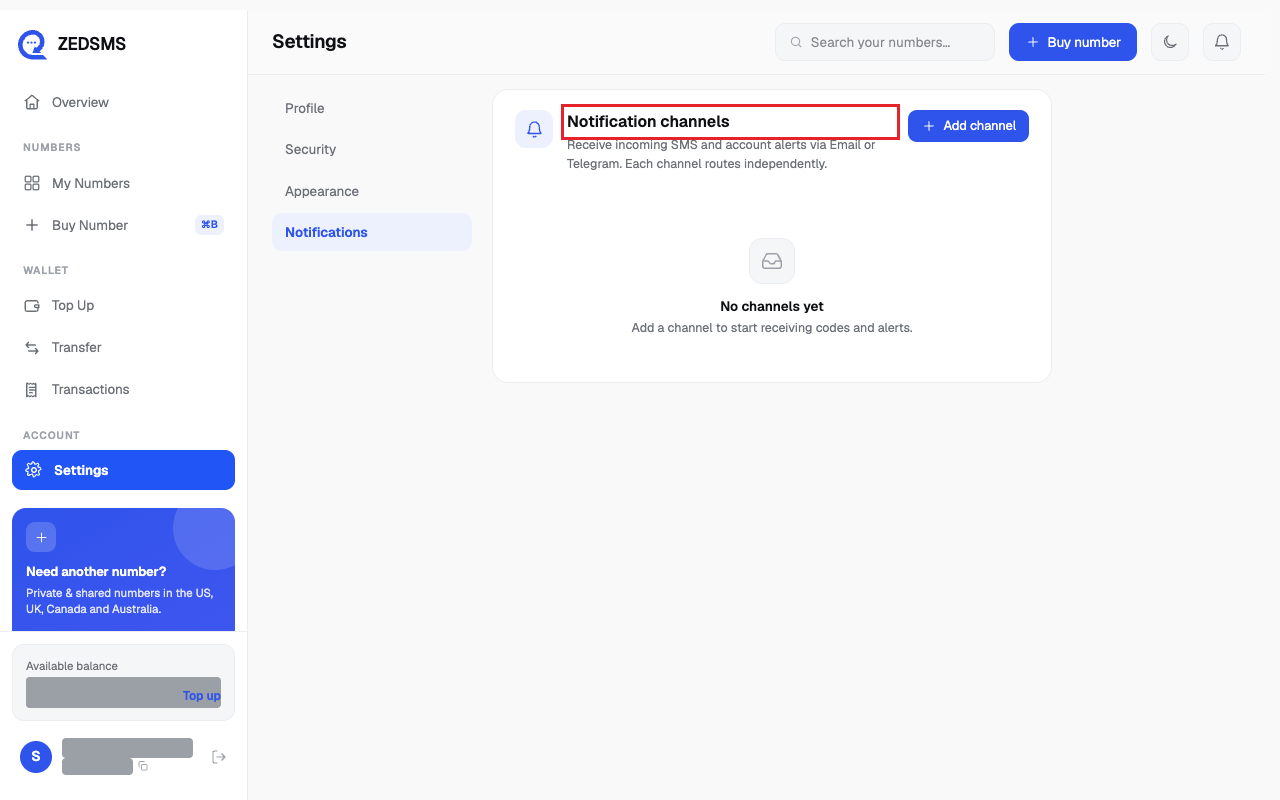
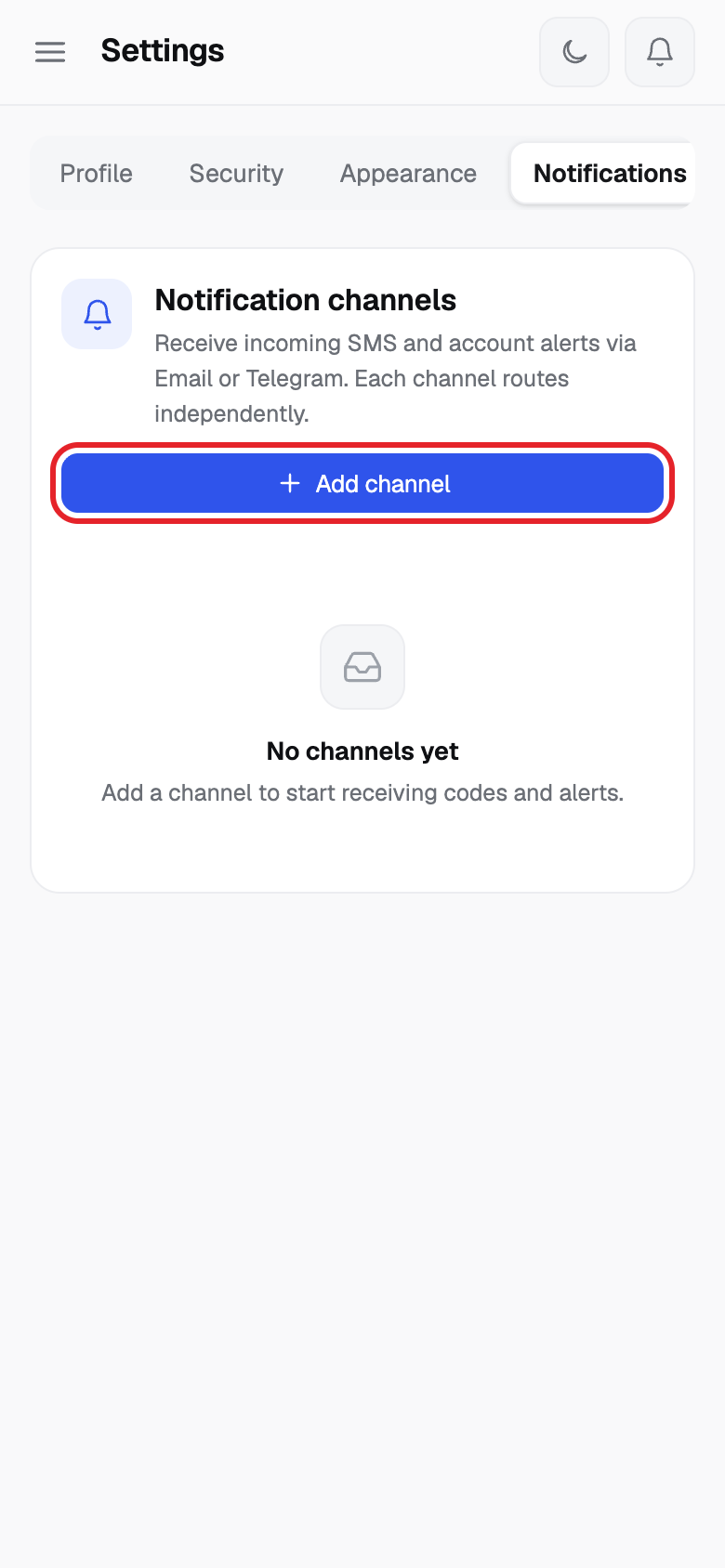
- Click Settings and open the Notifications tab. You see Notification channels.
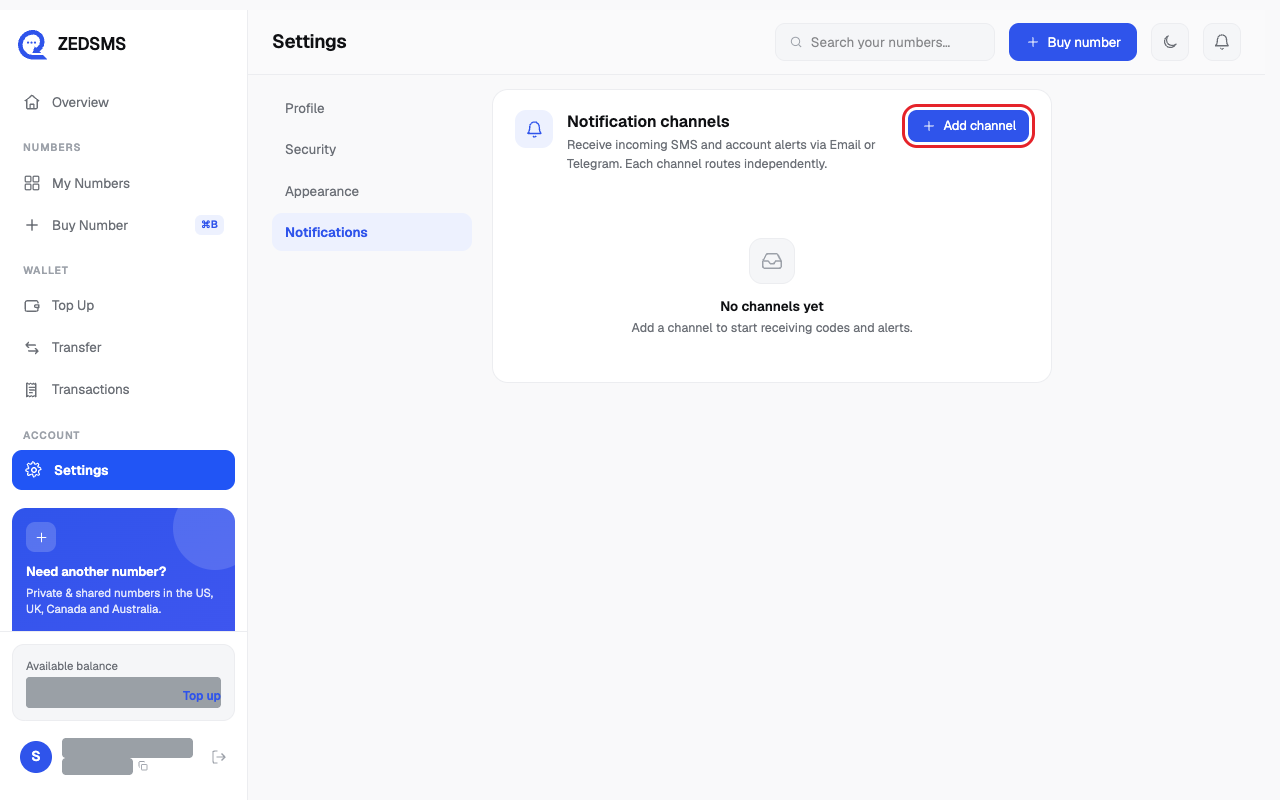
- Click Add channel.
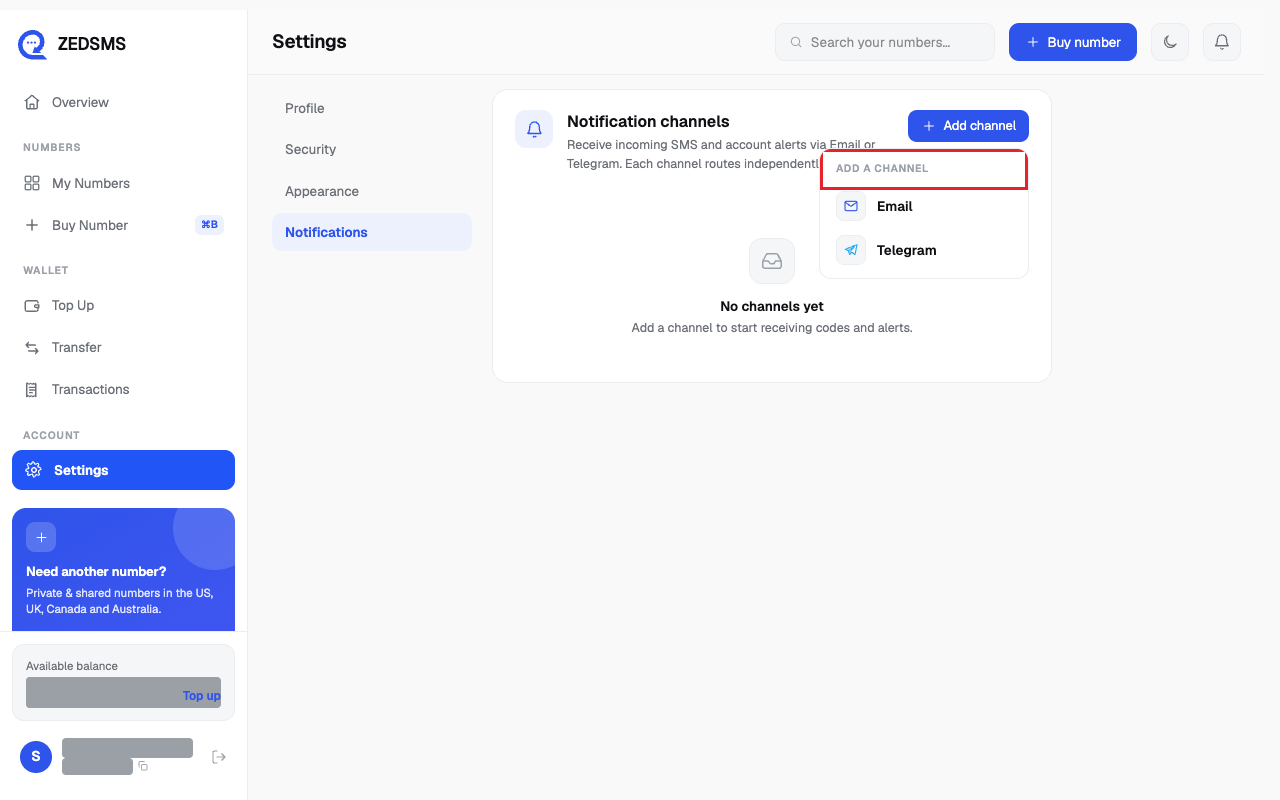
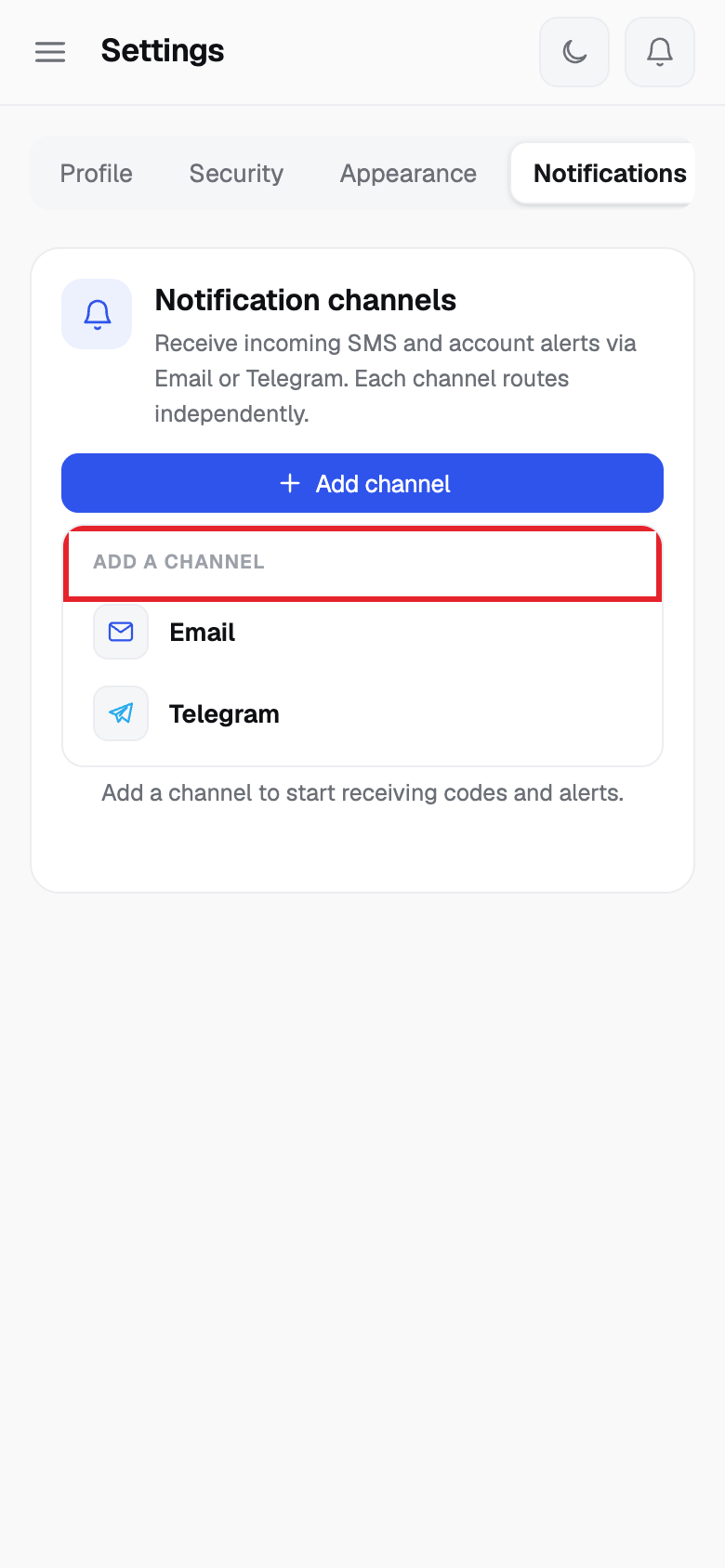
- Choose Email or Telegram.
- Email: type your address and click Send code. Then type the 6-digit code and click Verify.
- Telegram: click the blue button that starts with Open (it shows the ZEDSMS bot's name) and press Start in Telegram. If that does not link, send the command shown (it looks like /add=code) to the bot. Then click I've sent it.
- For each channel, use Incoming SMS to choose which numbers send messages there (All numbers, None, or pick some). Use System alerts to choose which account events to send.
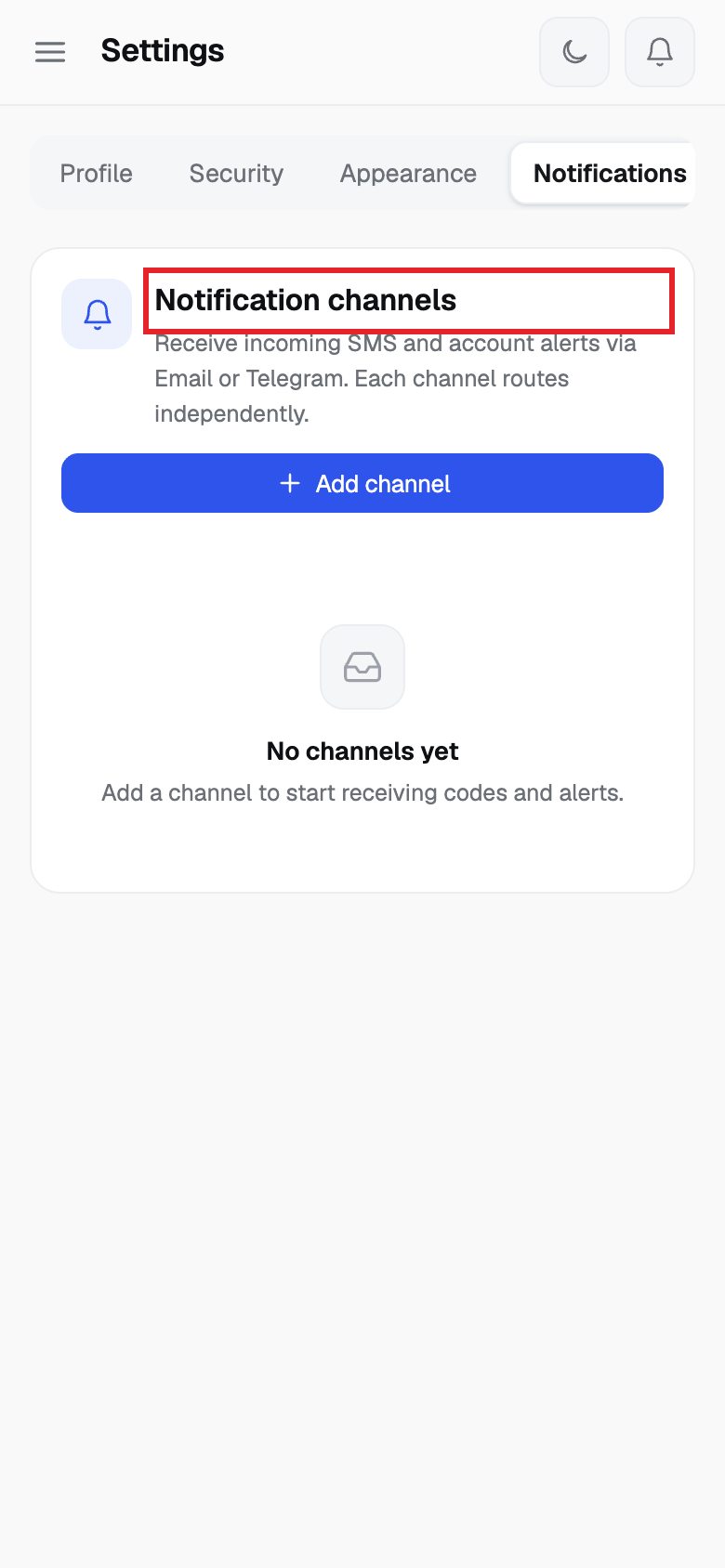
Using a phone? See the same steps on a small screen
Step 1
Step 2
Step 3
Good to know
- Each channel shows Verified or Pending.
- The email code is valid for 24 hours. The Telegram command expires in 24 hours.
- To remove a channel, click the bin icon and then Yes. No keeps it.
- Changes save as you click. A message says Incoming SMS routing saved or System alerts saved.
Common problems
- Send /add=… first. Send the command to the bot, then click I've sent it.
- Loading your channels… Wait a moment. Click Retry if it fails.